How to View Unity Logs on Android Without ADB
The fastest path if you just want logs on screen without installing platform tools: add Jahro, wire it up in code, open app.jahro.io in a browser while the build runs on the phone. No USB, no SDK, no flipping Developer Options on.
If you'd rather see the full menu first, the sections below walk through four approaches. For a straight ADB logcat vs in-game capture comparison, see ADB Logcat vs Jahro.
Why Debug.Log Disappears on Android
You open the Unity Editor and Debug.Log works exactly as expected. You build the same project, run it on an Android device, and the Console goes silent. Same code. No logs.
That is not a bug. In the Editor, messages go straight to the Unity Console. In an Android build, Debug.Log goes to Android's system log (logcat) under the tag Unity. Reading that stream means ADB (Android Debug Bridge): the Android SDK on a machine, USB debugging on the device, and either a cable or a working wireless ADB session.
Two details catch people every time:
In a Development Build (Build Settings checkbox), Debug.Log reaches logcat and shows up through ADB. In a Release Build, most Unity versions do not send those messages to logcat by default. They may still run in code; they just do not land anywhere you can read from the outside. Script Debugging is a different checkbox: symbols for stepping in Visual Studio or Rider. It does not turn on device logs.
Unity's com.unity.mobile.android-logcat package (since 2019.3) shows logcat inside the Editor. You still need ADB installed, on your PATH, and a connected device. The package is a window around the same pipeline, not a way around ADB.
So Debug.Log on Android has never been "just there." Old Unity, new Unity, same story: ADB, custom capture, or a third-party path. On Unity Discussions the complaint keeps resurfacing; a December 2024 thread titled Unable to Access Unity Logs on Android Studio Logcat or Command Line/Txt File reads a lot like posts from years earlier.
Four Approaches to View Android Logs
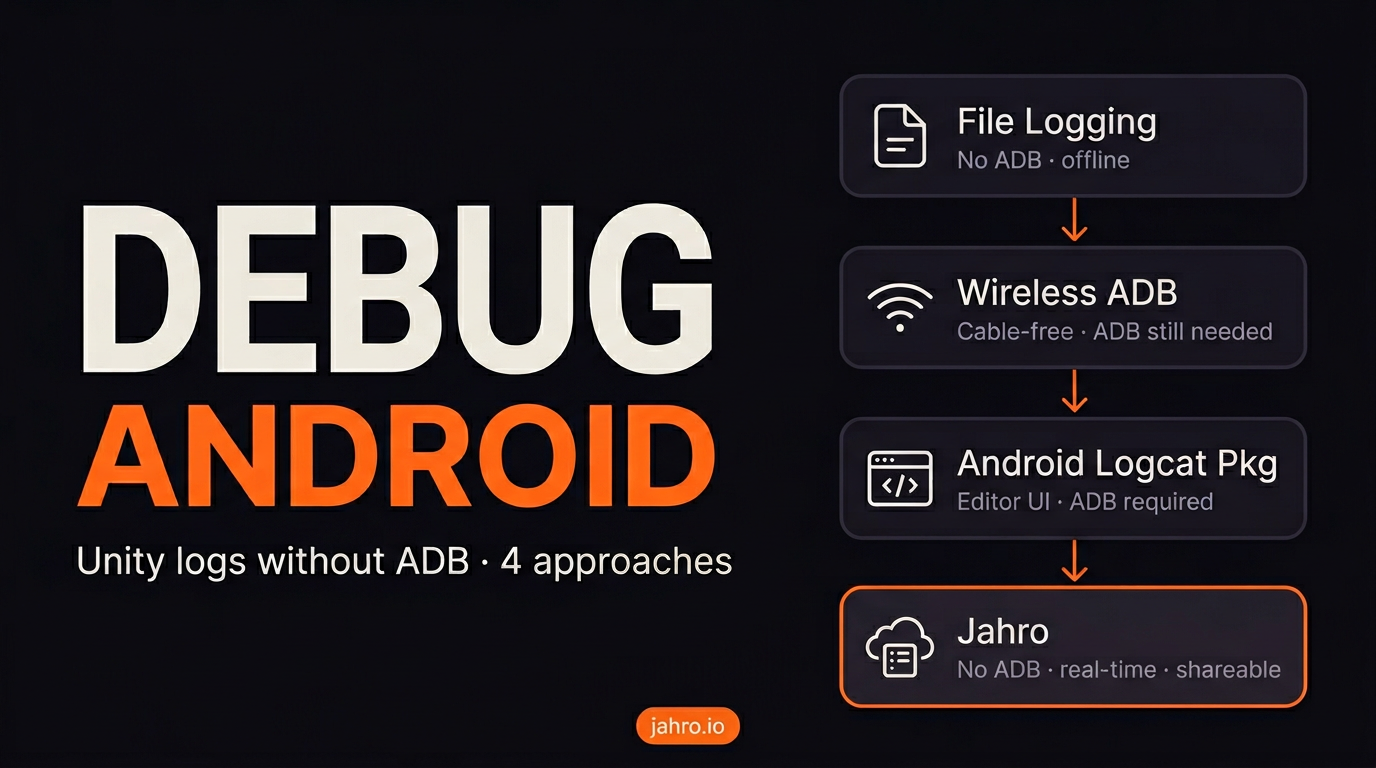
Roughly: half of these still depend on ADB somewhere; half do not.
| File Logging | Wireless ADB | Android Logcat Pkg | Jahro | |
|---|---|---|---|---|
| Requires ADB | No | Yes | Yes | No |
| Real-time viewing | No | Yes | Yes | Yes |
| Works without USB cable | Yes | Yes (Android 11+) | With wireless ADB | Yes |
| QA self-service | No | No | No | Yes |
| iOS support | Yes | No | No | Yes |
| Share logs with team | Manual | No | No | Yes (link) |
| Setup steps | Low | High (9–18) | Medium (ADB still) | Minimal (2) |
Approach 1: File-Based Logging
Use this for QA builds, crash dumps, or phones where you cannot enable Developer Options.
Unity exposes Application.logMessageReceived — a static event that fires for every Debug.Log, warning, error, and exception. You attach a handler and write messages to a file in Application.persistentDataPath.
using System.IO;
using UnityEngine;

public class FileLogger : MonoBehaviour
{
    private StreamWriter _writer;

    void Awake()
    {
        var path = Path.Combine(Application.persistentDataPath, "game_log.txt");
        _writer = new StreamWriter(path, append: false);
        Application.logMessageReceived += HandleLog;
        DontDestroyOnLoad(this.gameObject);
    }

    void HandleLog(string message, string stackTrace, LogType type)
    {
        _writer.WriteLine($"[{System.DateTime.Now:HH:mm:ss}] [{type}] {message}");
        if (type == LogType.Exception || type == LogType.Error)
            _writer.WriteLine(stackTrace);
        _writer.Flush(); // flush on every write — crash safety
    }

    void OnDestroy()
    {
        Application.logMessageReceived -= HandleLog;
        _writer?.Close();
    }
}
On Android, Application.persistentDataPath resolves to /storage/emulated/0/Android/data/<com.YourCompany.YourGame>/files/. Getting that file back without ADB is where this approach gets complicated.
Pre-Android 10: Any file manager could browse to Android/data/<packagename>/files/ and read the file directly. Straightforward.
Android 10+ (scoped storage): File managers can no longer access Android/data/ without the MANAGE_EXTERNAL_STORAGE permission — which requires explicit justification in a Play Store submission. The practical workarounds are: build a "Send Log" button that uses Android's share sheet to email the file, or upload it to a server on session end.
What you give up:
- Nothing streams live. You pull the file after the fact.
- On Android 10+ you need extra code (share sheet, upload) so anyone can get the file without ADB.
- Flushing every write helps survive crashes and costs I/O each time.
- A hard kill between writes can still lose the last lines.
- Teammates only see logs if someone sends them the file.
File logging still shines when you want a durable session record, or USB debugging is off the table. It does not replace a live tail.
Approach 2: Wireless ADB
Reach for this when ADB already works on your machine, you are on a normal home Wi-Fi, and you mainly want to drop the cable.
Wireless ADB still is ADB; it only moves the link from USB to Wi-Fi. On Android 10 and below you usually plug in once to authorize, then switch to TCP:
adb tcpip 5555
# unplug the USB cable
adb connect <device-ip>:5555
adb logcat -s Unity
Android 11+ added a pairing-code flow that can work without a prior USB connection:
# On device: Settings → Developer Options → Wireless Debugging → Pair device with pairing code
adb pair <ip>:<pairing-port>   # enter the 6-digit code shown on device
adb connect <ip>:<connection-port>   # note: different port from pairing port
adb logcat -s Unity
Pairing uses one port; the actual session uses another. Developer Options shows two different numbers on different screens. Feed the pairing port into adb connect and you get "Connection refused." Easy mistake.
It also tends to fall over when:
- The Wi-Fi isolates clients (a lot of corporate and guest networks). Your PC and phone never see each other.
- The phone picks a new IP after sleep or a router reboot, so yesterday's
adb connectis stale. - You rely on mDNS discovery on Android 11+. Typing IP:port by hand is boring but more reliable across hardware.
- Some early Android 11 builds on Samsung and Xiaomi shipped with broken pairing until a patch landed.
For one developer, one phone, one home router, wireless ADB is fine. Hand someone else's device, a locked-down network, or an iOS build into the same workflow and it stops being the answer.
Approach 3: Unity's Android Logcat Package
Use this when ADB already works and you would rather stay in the Editor than juggle a terminal.
The Android Logcat package (com.unity.mobile.android-logcat, since Unity 2019.3) adds Window → Analysis → Android Logcat. You get the same stream as adb logcat -s Unity, with filtering by tag, level, and regex, auto-scroll, and stack trace symbolication so crash addresses resolve to file and line.
To install:
- Window → Package Manager → search "Android Logcat"
- Install the
com.unity.mobile.android-logcatregistry package - Switch build target to Android
- Connect device via USB (or wireless ADB, pre-configured)
- Window → Analysis → Android Logcat → device appears in the dropdown
It is still ADB under the hood. If adb devices is empty in a terminal, the package will not magically see the phone either. SDK, PATH, USB debugging, authorization: unchanged. Handy if you already crossed that bridge; useless if you never installed the tools.
If the Editor window beats a shell for you and ADB is working, install it. If ADB is not set up, this package will not fix that.
Approach 4: Jahro — No ADB Required
Use this when you have no ADB setup, phones are elsewhere, QA needs to self-serve, or you want one workflow for Android and iOS.
Jahro hooks at the Unity app layer. Logs are collected inside the running game and sent to a web dashboard over the network, instead of forcing everything through logcat and ADB. No Android SDK, no cable, no Developer Options for the sake of logging.
Setup
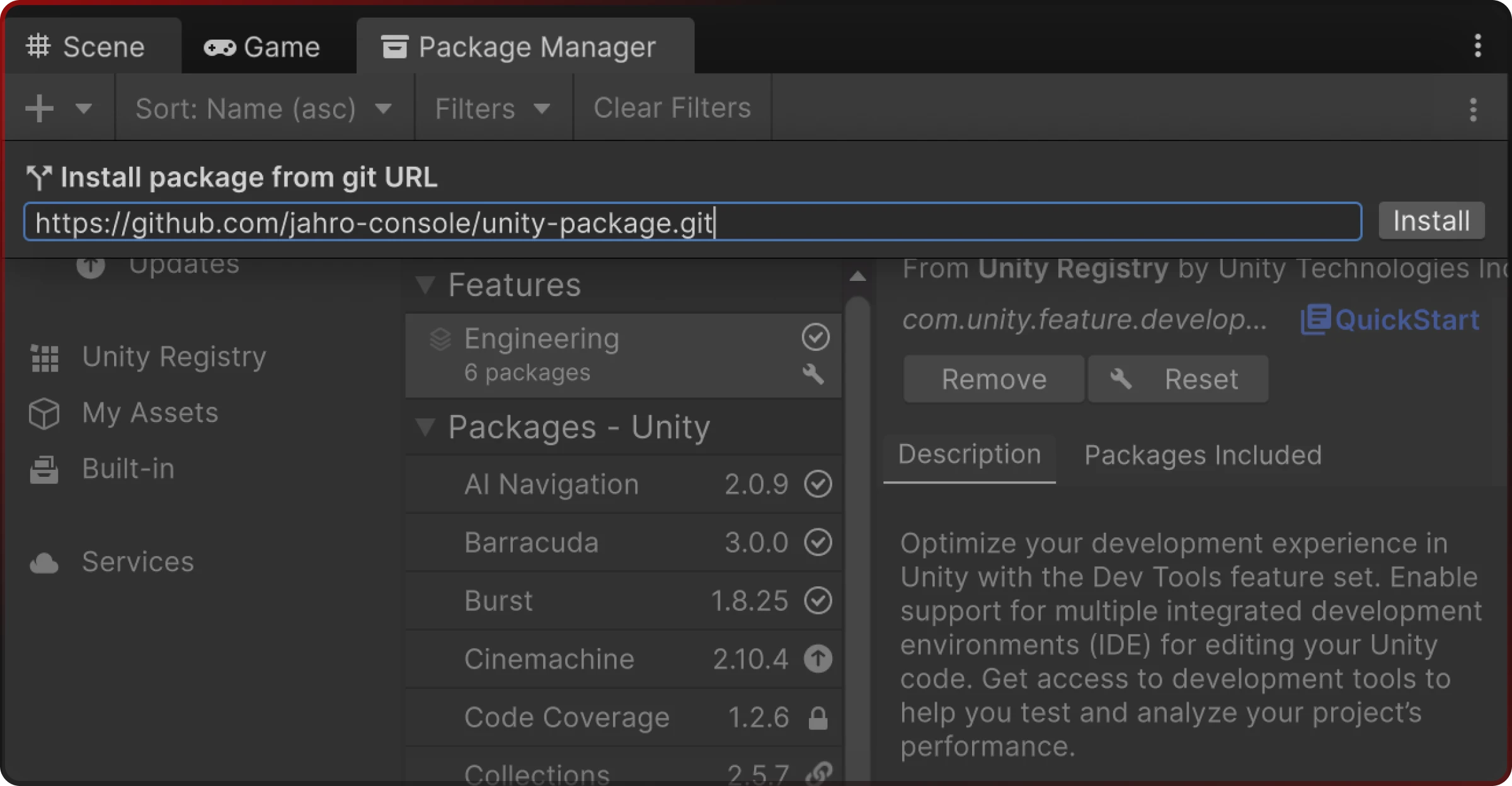
Step 1 — Install the Jahro package
Package Manager → + → Add package from git URL → paste Jahro's URL → Install.
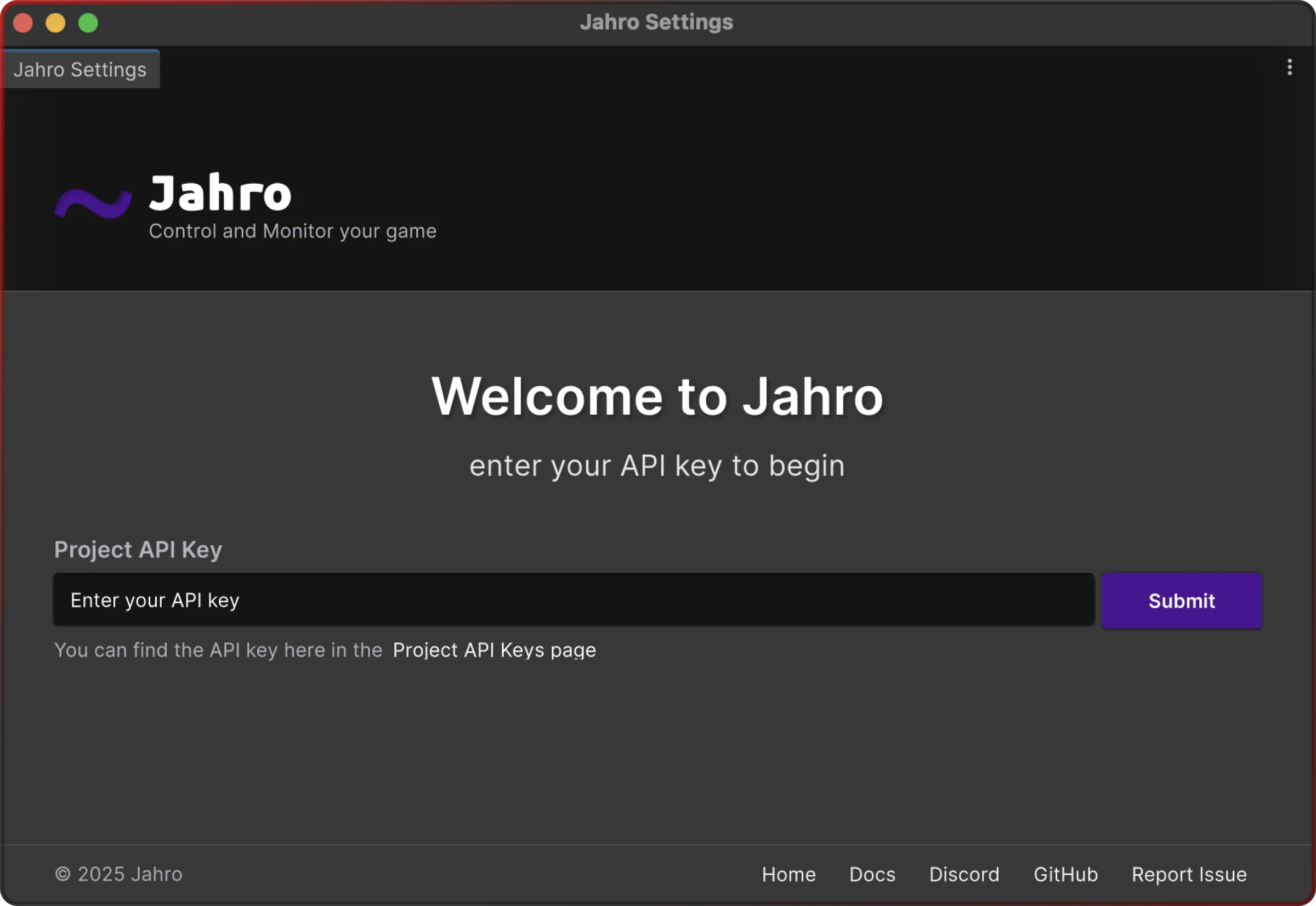
Step 2 — Connect your project
Go to Tools → Jahro Settings. On the main tab, paste your API key from app.jahro.io and click Submit. The package links itself to your project.
Step 3 — Build and deploy to your Android device
Standard build process. Development Build or Release Build — no additional build settings are required for Jahro to capture logs.
Step 4 — Open the Jahro web dashboard
Navigate to app.jahro.io in any browser, on any device, while the game is running on the Android device.
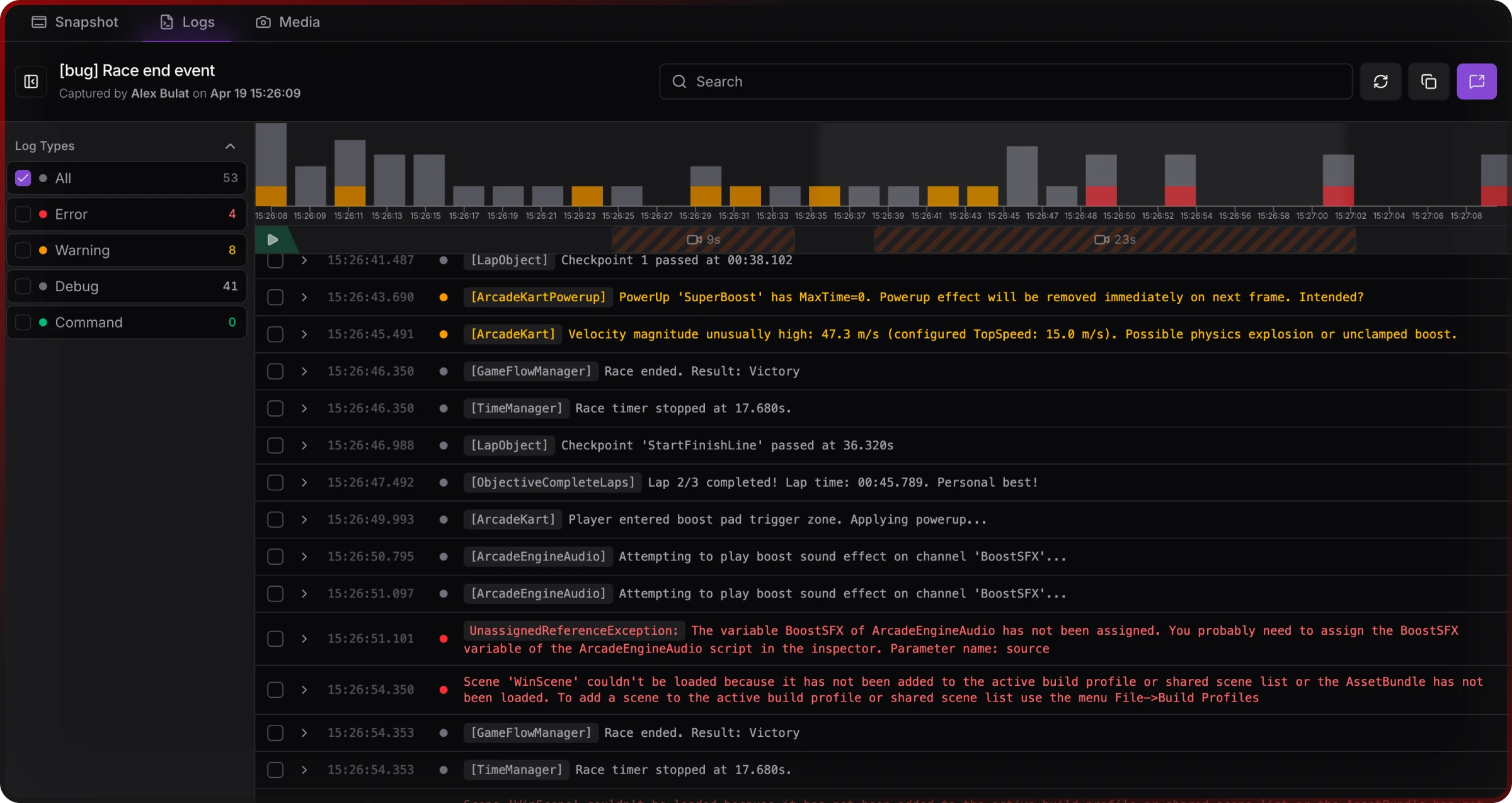
Step 5 — Reproduce the issue and watch logs appear
Debug.Log(), warnings, errors, and exceptions show up on the dashboard as they happen. No cable, no adb, no terminal.
What else Jahro includes
Besides the web log view:
- In-game console overlay on the device (hotkey or triple-tap) when a browser is awkward.
- Commands console to call into the running game for test states, tweaks, or QA shortcuts without a new build.
- Session snapshots with shareable links so someone far away can post a URL and you see what their device saw.
- Multiple devices attached to one project for multiplayer or parallel QA.
Trade-offs
The device needs network during the session (internet or LAN). For pure offline debugging (airplane mode, forced-disconnect scenarios), lean on the overlay or pair Jahro with file logging. Jahro targets Unity 2020.3 and newer.
Which Approach Should I Use?
ADB already works and you want the smallest change: keep adb logcat -s Unity, or add Unity's Android Logcat window. Wireless ADB helps if it is just you, your phone, and you are tired of the cable.
You cannot plug the phone in and you cannot expect ADB on the other person's PC: Jahro is the straightforward fit. Wireless ADB might work in theory; in practice, guest Wi-Fi and "install platform-tools on QA's laptop" kill it.
You want a durable log file for QA or crashes: file logging stays simple and stays offline. Add a share or upload path so the file actually leaves the device.
QA must grab logs without calling a developer: that is not ADB's job (wired or wireless). Jahro is built around that handoff.
You ship iOS and Android: ADB never helped on iOS anyway. File logging works both ways; Jahro uses the same dashboard for either build.
FAQ
Why can't I see Debug.Log messages on my Android device?
On device, Debug.Log goes to Android's logcat, not the Unity Console. The Console is Editor-only. To read device output you use ADB with a Unity filter, write logs to a file yourself, or use something like Jahro that shows logs outside logcat.
Do I need a Development Build to see Unity logs on Android?
For ADB logcat, a Development Build matters: in Release builds many Unity versions do not send Debug.Log to logcat by default. File logging or Jahro capture at the app level, so Development vs Release is less of a gate; logs can land either way depending on your code.
How do I view Unity logs on Android without a USB cable?
Wireless ADB on Android 11+ drops the cable but not ADB itself (install, Developer Options, Wi-Fi that allows device-to-device). Jahro skips ADB and the cable; logs show in the browser while the app runs.
Why does adb logcat show no Unity output even though the device is connected?
Often: no -s Unity filter so Unity lines vanish in the noise; Release build without logcat routing; adb devices shows unauthorized because the USB debugging prompt was dismissed; or two different adb installs fighting each other and taking the server down.
Can a QA tester view Unity logs without a developer's help?
ADB expects the phone on a PC with the SDK. Jahro lets testers use the in-game console and send a snapshot link without that setup.
Why doesn't Unity Remote help with log viewing?
Unity Remote pushes the screen and input to the Editor during Play Mode in the Editor. It is not for installed APKs and it does not forward Debug.Log from a build on hardware.
Does the logging problem affect all Android versions the same way?
Broadly yes, with wrinkles. Scoped storage from Android 10 onward makes raw file browsing under Android/data/ painful without extra permissions or in-app sharing. Wireless ADB without a prior USB step really starts at Android 11. In Unity 6, extra native Android debug spam each frame can bury ordinary Debug.Log lines in logcat even when you filter.