Unity Plugin Overview — Jahro Debug Console
Jahro is a Unity debug console that runs inside your game builds on iOS and Android — no ADB, no USB cables, no Xcode required.
The plugin has four runtime debugging tools: a command runner for triggering debug actions and cheats, a variable watcher for live monitoring, a log viewer with filtering and search, and Snapshots that capture and share full debug sessions as a link. Everything works in device builds, not just in the Editor.
Core features
Commands
Execute debug methods and cheats in a running build by tagging methods with [JahroCommand]. Jahro discovers them automatically at startup. Run commands in Text mode (console-style input with autocomplete) or Visual mode (button grid with favorites and overload resolution).
[JahroCommand]
public static void SetPlayerHealth(int value) { ... }Watcher
Monitor game variables live without spamming the log. Tag fields or properties with [JahroWatch]. For instance members, call Jahro.RegisterObject(this) in OnEnable and Jahro.UnregisterObject(this) in OnDisable.
[JahroWatch] private float _playerSpeed;→ Watcher
Logs
All Unity log output — Debug.Log, warnings, and errors — appears in the console with per-type filtering and text search. Command outputs appear here too. View logs in-game without leaving the session.
→ Logs
Snapshots
One tap captures a full debug session — logs and a screenshot — and generates a shareable link. Use Recording mode for a fixed capture window, or Streaming mode for a live feed to the web console. Share the link with your team instead of describing what you saw.
The UI
The interface has two parts:
- Launch Button — a draggable floating button that persists position across sessions, shows a notification badge for unread errors, and can be hidden or disabled in settings.
- Main Window — a resizable overlay with six tabs: Text, Visual, Watcher, Snapshots, Account, and Settings.
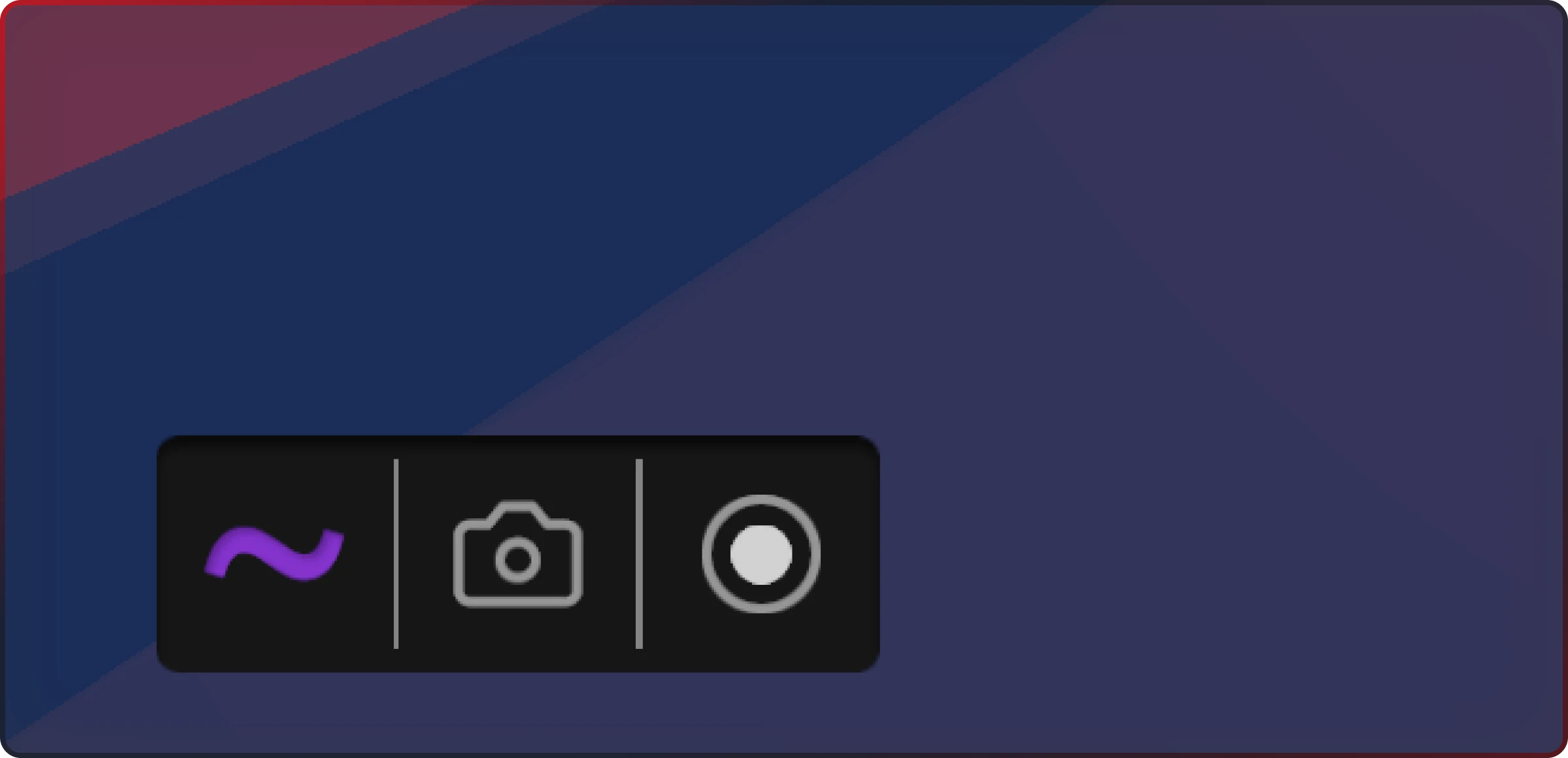
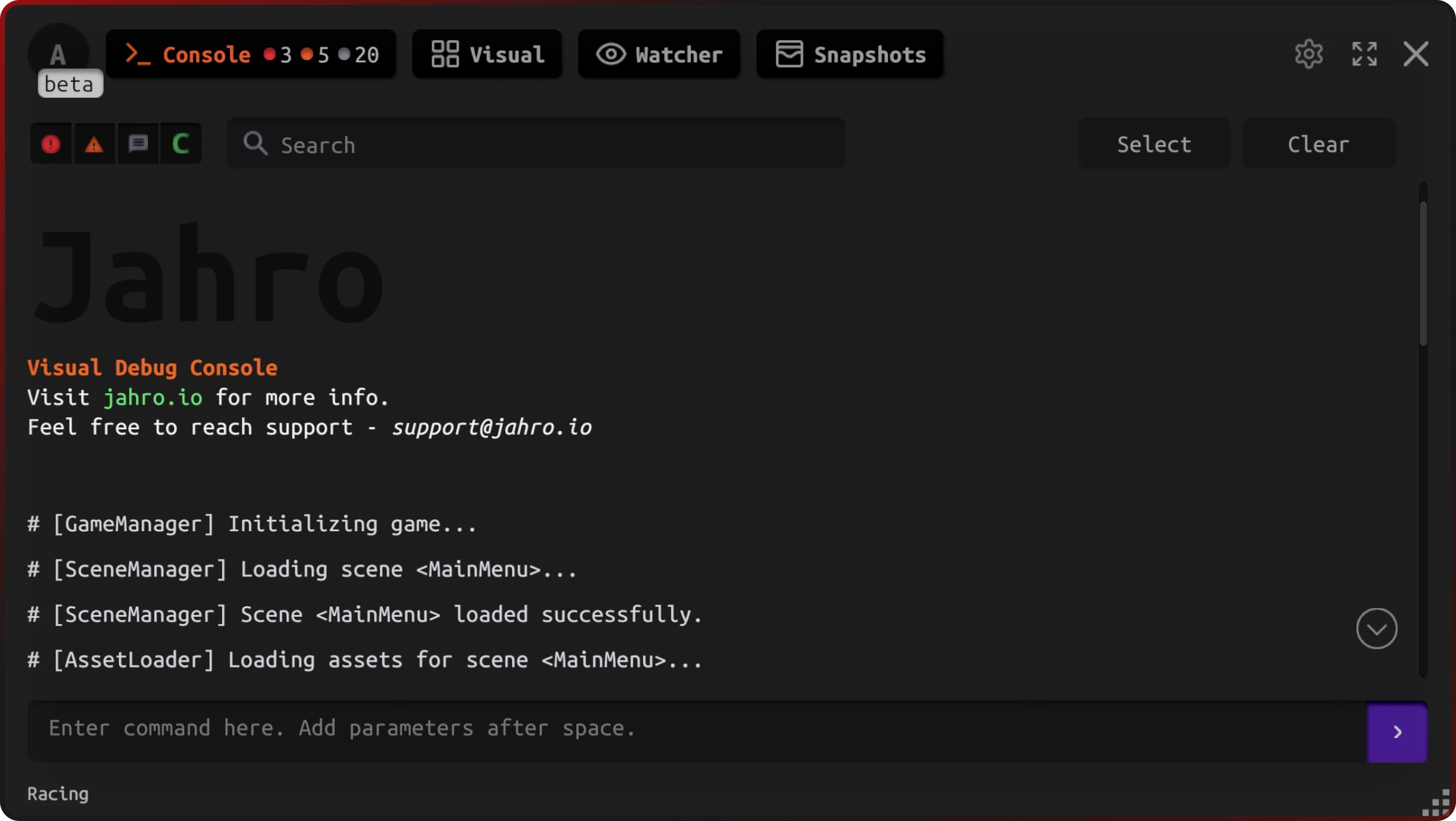
The UI uses touch gestures, respects safe areas, and works on narrow screens without layout issues.
→ UI Overview · Text Mode · Visual Mode · Watcher UI
Settings and lifecycle
Configure Jahro at Tools → Jahro Settings:
| Setting | What it does |
|---|---|
| Enable Jahro | Global on/off toggle for all Jahro functionality |
| Auto-disable in Release Builds | Excludes Jahro from non-development builds automatically |
| Launch Key | Keyboard shortcut to open the console (default: tilde ~) |
| Mobile Tap Activation | Triple-tap the screen to open on device |
| Assembly Configuration | Selects which assemblies Jahro scans for commands and watchers |
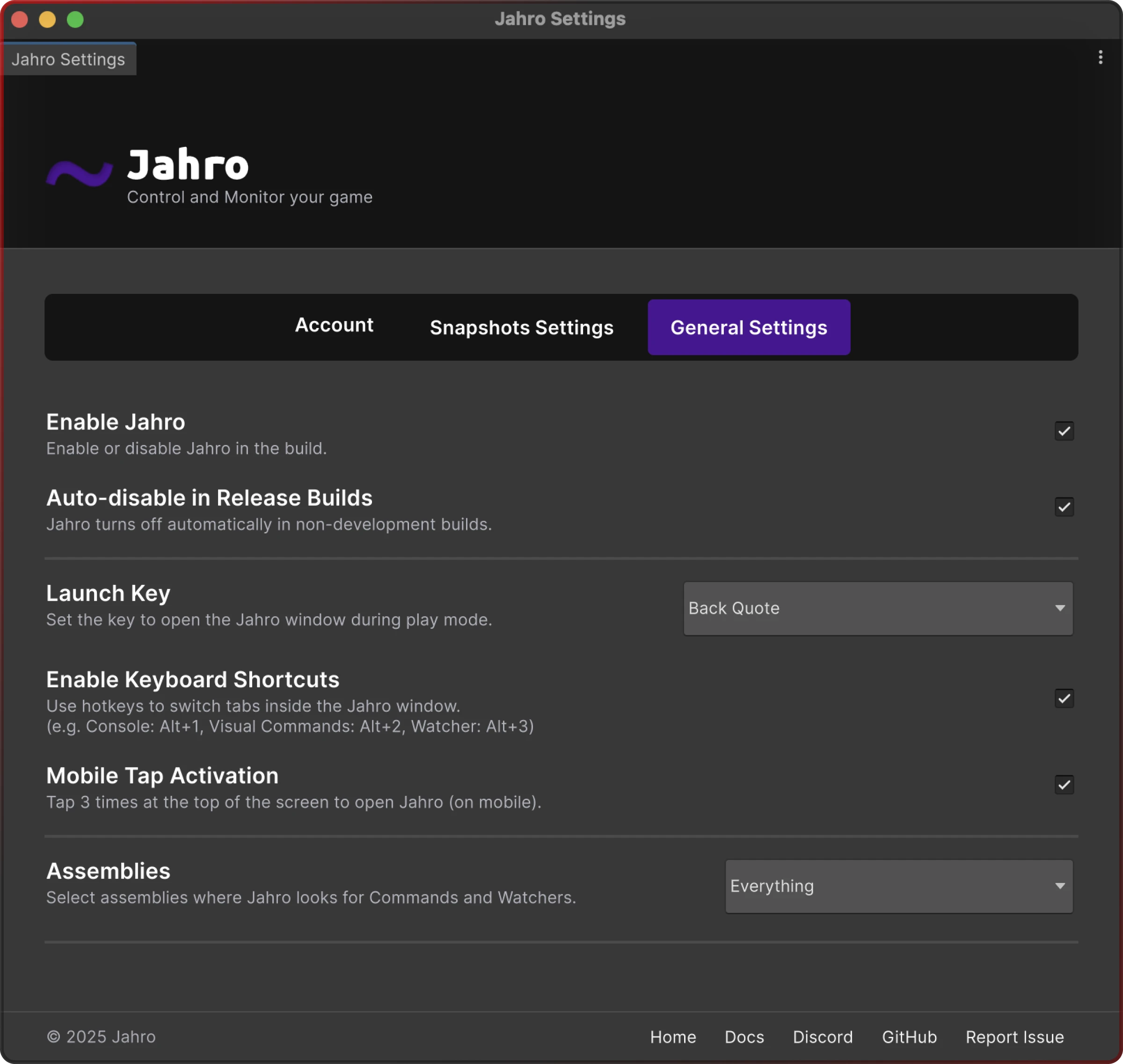
For build exclusion options (JAHRO_DISABLE define, auto-disable behavior, initialization order) see the full reference.
→ Jahro Settings · Lifecycle & Build Exclusion
Runtime API
Access the Jahro API via JahroConsole.Jahro to integrate the console with existing game systems.
| Member | Type | What it does |
|---|---|---|
Enabled | property | Whether Jahro is active |
IsOpen | property | Whether the main window is visible |
IsLaunchButtonEnabled | property | Whether the launch button is shown |
Show() / Close() | methods | Open or close the main window |
EnableLaunchButton() / DisableLaunchButton() | methods | Enable or disable the launch button |
ShowLaunchButton() / HideLaunchButton() | methods | Show or hide the launch button |
RegisterObject(obj) / UnregisterObject(obj) | methods | Register or remove an instance for Watcher and Commands |
RegisterCommand(name, delegate) | method | Register a command dynamically at runtime |
OnConsoleShow / OnConsoleHide | events | Fire when the console opens or closes |
Common gotchas
Commands and watchers don't appear — assembly not scanned. Jahro only scans assemblies you select in Tools → Jahro Settings → Assembly Configuration. If you add a new assembly after initial setup, open Settings and add it manually.
Instance commands don't show up.
[JahroCommand] on an instance method requires a Jahro.RegisterObject(this) call in OnEnable. The attribute alone doesn't register the instance — only static methods are discovered without explicit registration.
Development builds sent to QA still include Jahro.
Auto-disable fires when Debug.isDebugBuild is false. Unity Development Builds still count as debug builds, so Jahro stays active. If you ship a Development Build to external testers, verify which commands and data they can access.
Settings aren't shared across the team.
All settings save to Assets/Jahro/Resources/jahro-settings.asset. Commit this file to source control, or every developer will need to re-enter the API key and reconfigure assembly scanning from scratch.
Frequently Asked Questions
Does the Unity plugin require any special setup beyond installation? No. Install via Unity Package Manager, add your API key in Jahro Settings, and the console initializes automatically at runtime. Enable "Auto-disable in Release Builds" to keep it out of production builds.
Where do I start if I'm new to Jahro?
The Getting Started guide gets you installed in under 2 minutes. After that, add [JahroCommand] to one method — seeing it appear in the console is a good way to understand how the rest of it fits together.