Getting Started with Jahro
Unity's built-in console only works in the editor. On device, your logs go to Android Logcat or iOS Console, both of which need cables and desktop tools. Jahro puts a debug console directly in any build, running on the device with no external setup.
Requirements
- Unity 2021.3.0f1 or later
- No additional libraries or dependencies required
Install via Package Manager
Step 1: Copy the package URL
https://github.com/jahro-console/unity-package.gitStep 2: Add the package in Unity
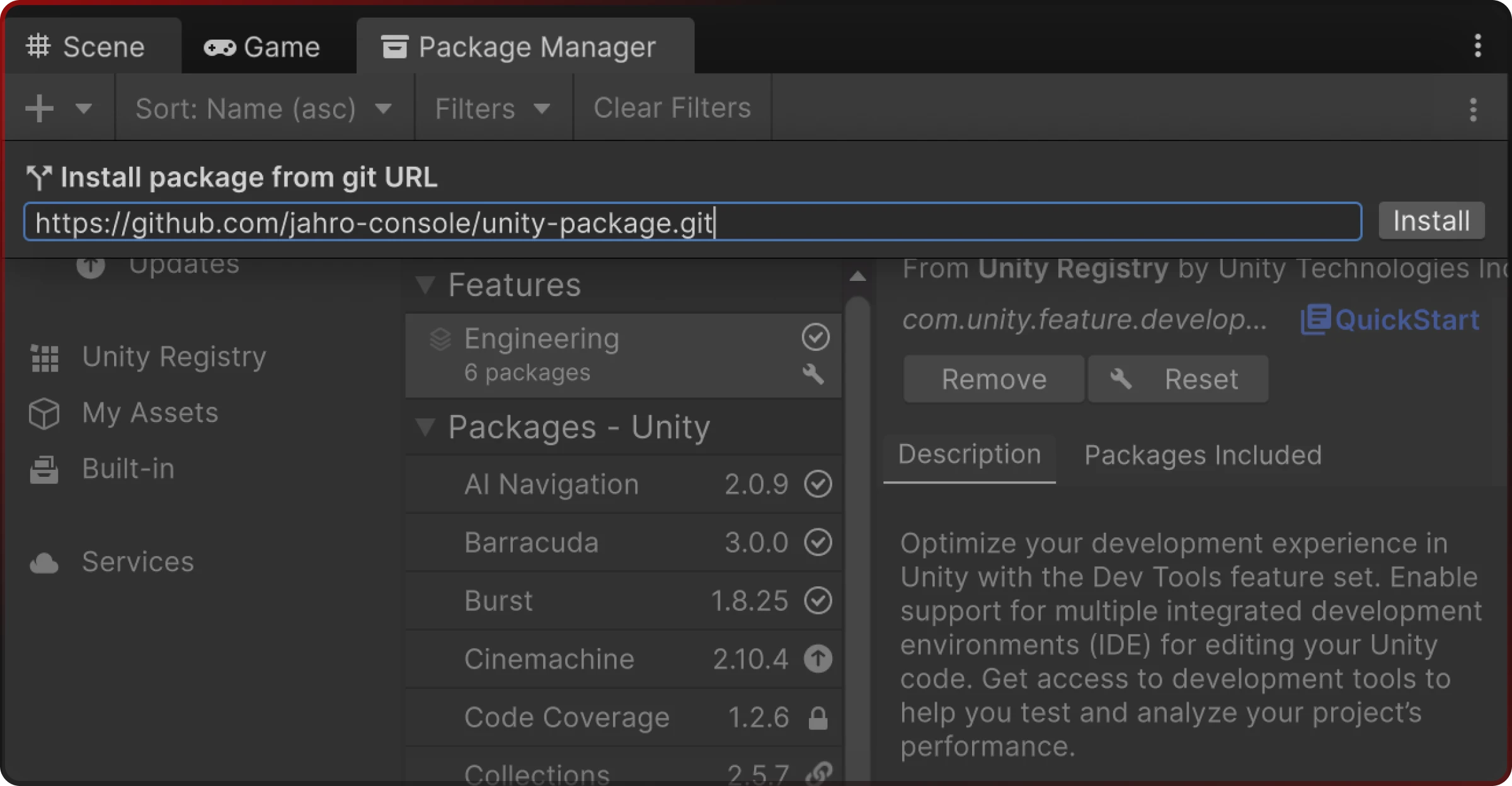
- Open Unity and go to Window → Package Manager
- Click the + button in the top-left corner
- Select Add package from Git URL
- Paste the URL and click Install
Create your account
Create a free Jahro account. You need this to generate an API key and access the web console where snapshots and shared logs are stored.
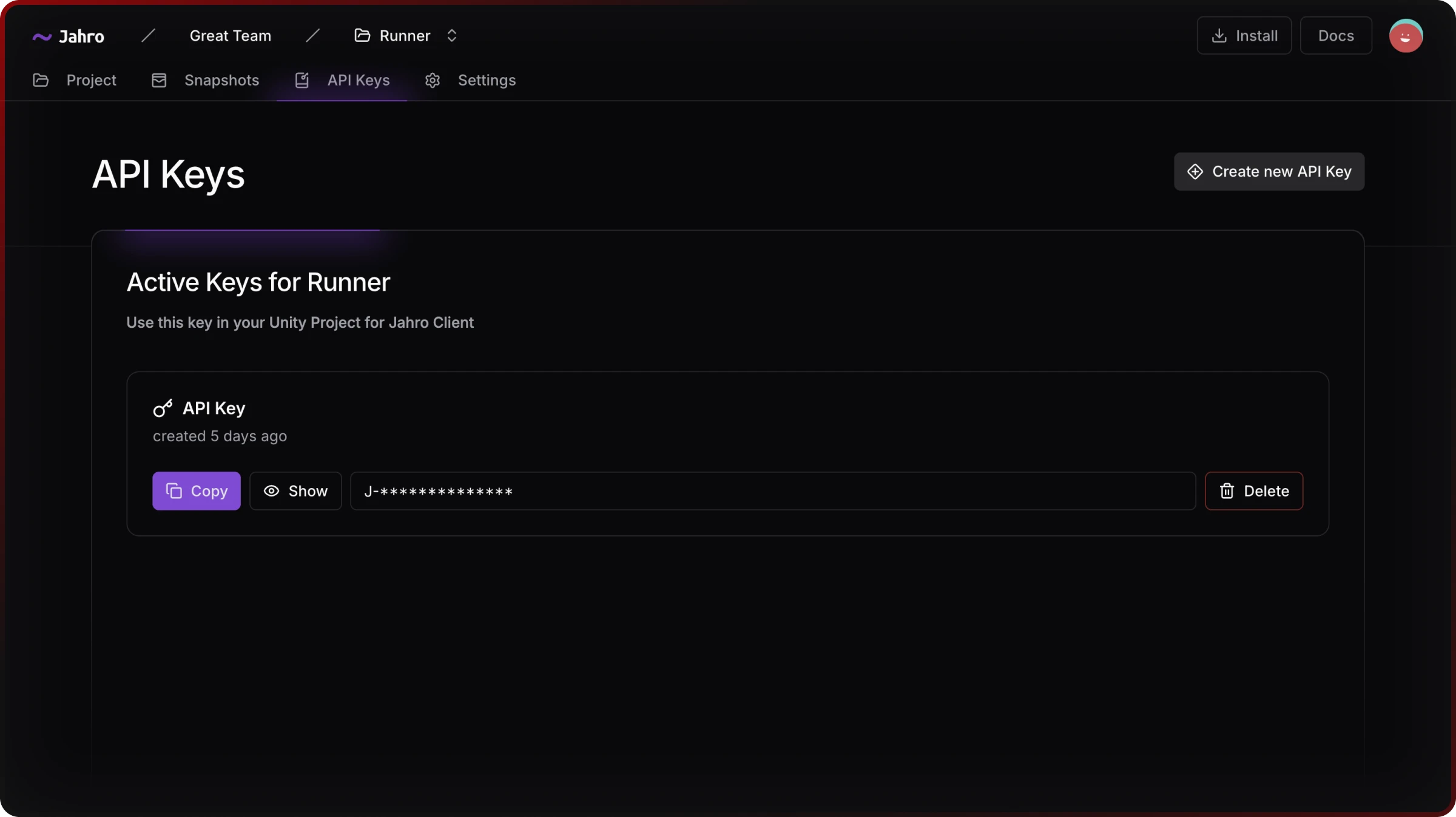
Find your API key
- Open the Jahro web console
- Navigate to your project dashboard
- Go to Project → API Keys
- Copy your project API key
Connect Unity
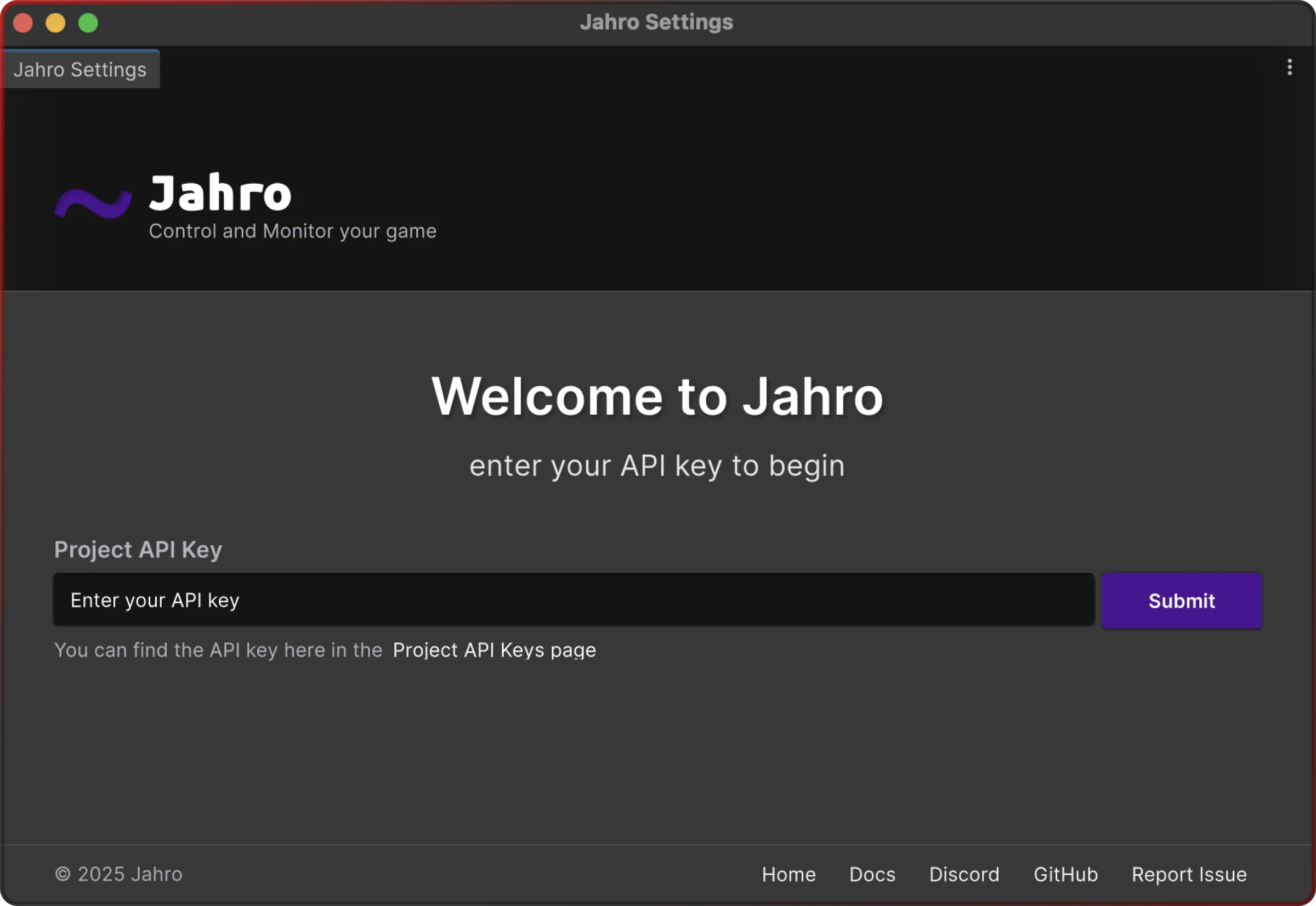
- In Unity, go to Tools → Jahro Settings
- Paste your API key in the API Key field
- The settings panel validates your key and displays your project name
Open the console
Press ~ (tilde) in Play Mode on desktop, or triple-tap anywhere on screen in a mobile build. The console opens immediately, no scene setup or initialization code needed.
From here you can read logs, run commands, watch variables, and capture snapshots.
Supported platforms
| Platform | Status |
|---|---|
| Standalone (PC, Mac) | Supported |
| Android | Supported |
| iOS | Supported |
| WebGL, Consoles, VR | Planned |
Gotchas
- Git must be installed for Unity Package Manager to resolve the Git URL. If the install fails, verify that
gitis accessible from your system PATH. - API key validation runs on save. If the settings panel shows no project name after pasting your key, check that you copied the correct key from the right project.
- Jahro is active in all build types by default, including release builds. To exclude it from production, see Lifecycle.
Frequently Asked Questions
How long does it take to install Jahro? About 2 minutes. Add the package via Unity Package Manager using the Git URL, create an account, paste your API key in Tools → Jahro Settings, and you're ready to debug.
Do I need ADB or a USB cable to use Jahro?
No. Jahro works without ADB, USB cables, or Xcode. Open the console by pressing ~ on desktop or triple-tapping the screen on mobile.
What Unity versions does Jahro support? Unity 2021.3.0f1 or later. No additional libraries or dependencies are needed.
Does Jahro work on both iOS and Android? Yes. Jahro works on Android and iOS without any platform-specific setup. Standalone (PC and Mac) builds are also supported.
Is Jahro free? The Solo plan is free for individual developers. Paid plans add team collaboration, multiple projects, and extended snapshot history.
Use AI to write Jahro code
Agent skills teach your AI coding assistant (Claude Code, Cursor, Windsurf) to generate correct Jahro code — commands, watchers, snapshots, production config, and more. Install them once and your AI handles attribute syntax, registration lifecycle, and common patterns automatically.
git clone https://github.com/jahro-console/unity-agent-skills.git .agents/skills/jahroThen ask your AI: "Add debug commands to my PlayerController" — it generates working [JahroCommand] code on the first try.
Learn more about agent skills →
For tutorials on mobile debugging workflows, QA handoffs, and related topics, see Jahro guides.
Next steps
- Commands — Add runtime debug commands and cheats to any build
- Watcher — Monitor game variables in real-time without
Debug.Log - Snapshots — Capture and share complete debug sessions with one tap
- Logs — View and filter Unity logs directly in your game view
- Jahro Settings — Full configuration reference