Text Mode Interface
Text Mode is Jahro's keyboard-driven view: run Unity console commands and read live game logs in the same panel, without switching between windows.
Type a command, see its output alongside your Debug.Log stream, then filter down to what matters. Autocomplete, history, search, and log type filters are all accessible from the keyboard.
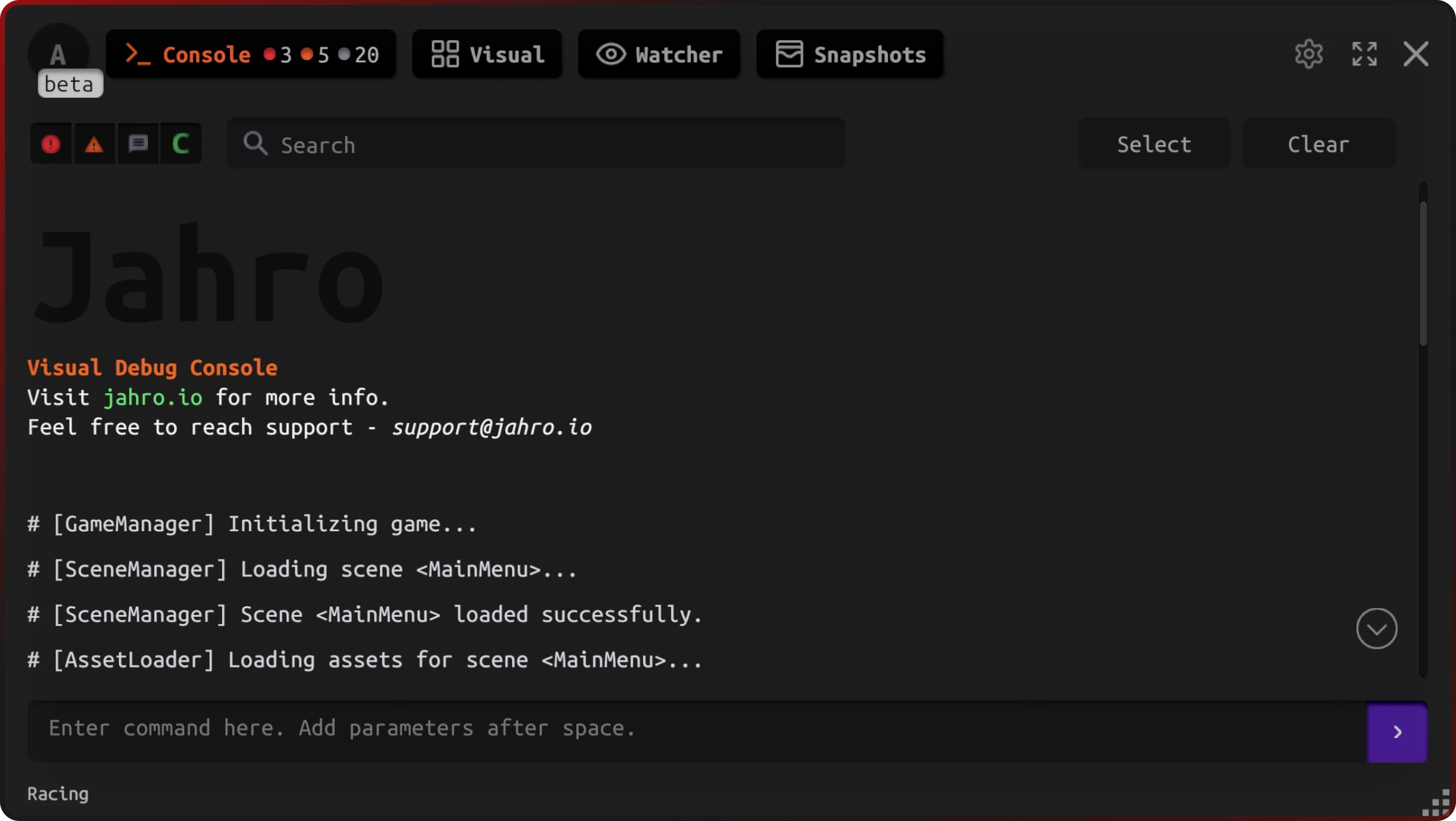
Command Input
Entering Commands
Type directly into the input field at the bottom of the console:
command-name [parameters...]Examples:
reset-gamespawn-enemy 5set-difficulty Hardtp 10 2.5 -7
Autocomplete
Start typing any command name and press Tab to cycle through matches.
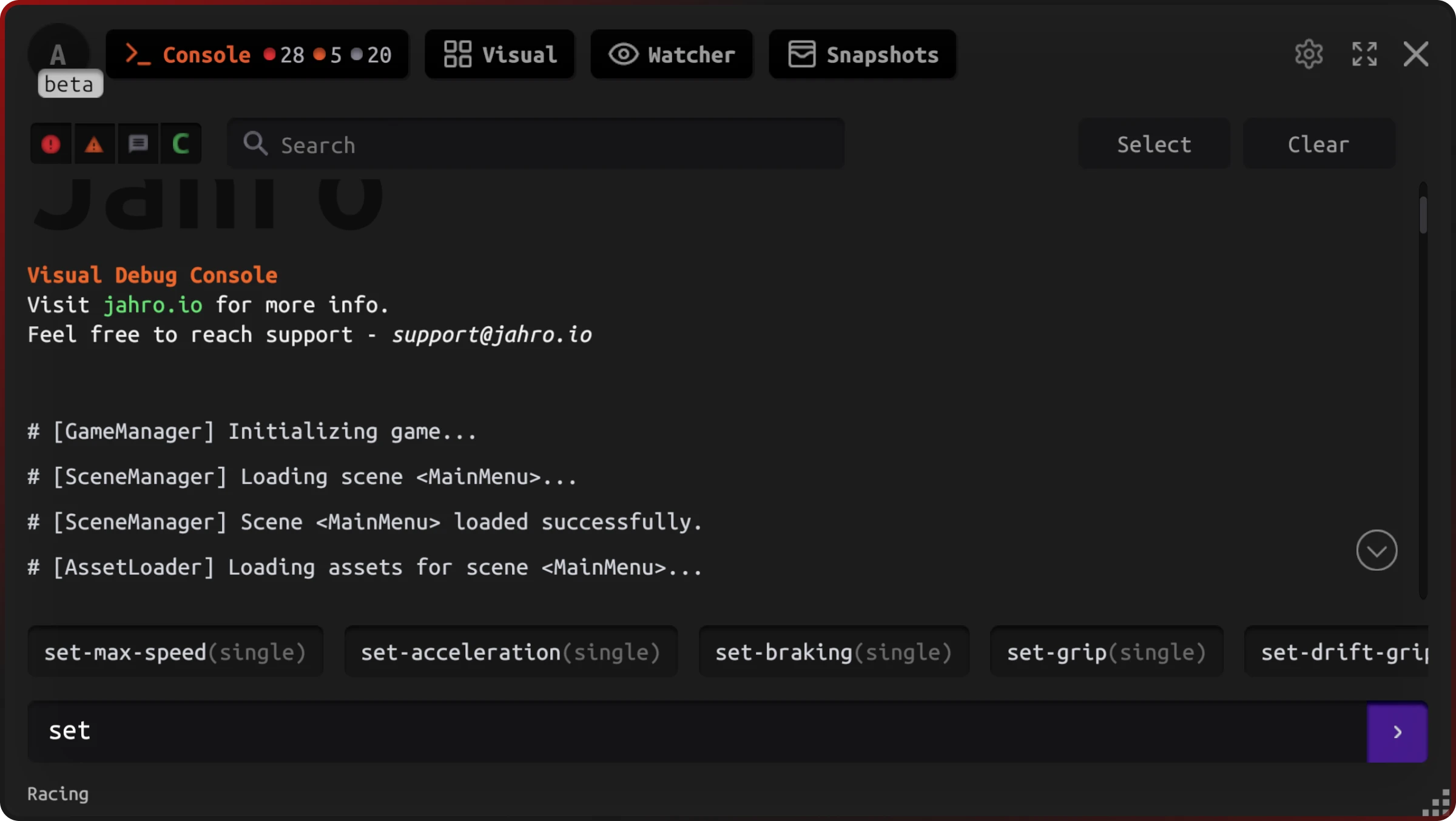
The autocomplete panel shows:
- Matching commands as you type
- Expected parameters in gray text
- Adds a space after inserting the command name
- Matches from any position in the name
Command History
Navigate previously run commands with the arrow keys:
| Key | Action |
|---|---|
↑ Arrow | Previous command |
↓ Arrow | Next command |
Enter | Execute command |
Tab | Open autocomplete / cycle forwards |
Shift+Tab | Cycle autocomplete backwards |
Log Filtering
Filter by Type
Use the filter buttons in the top bar to show or hide log types. Each type has a distinct color:
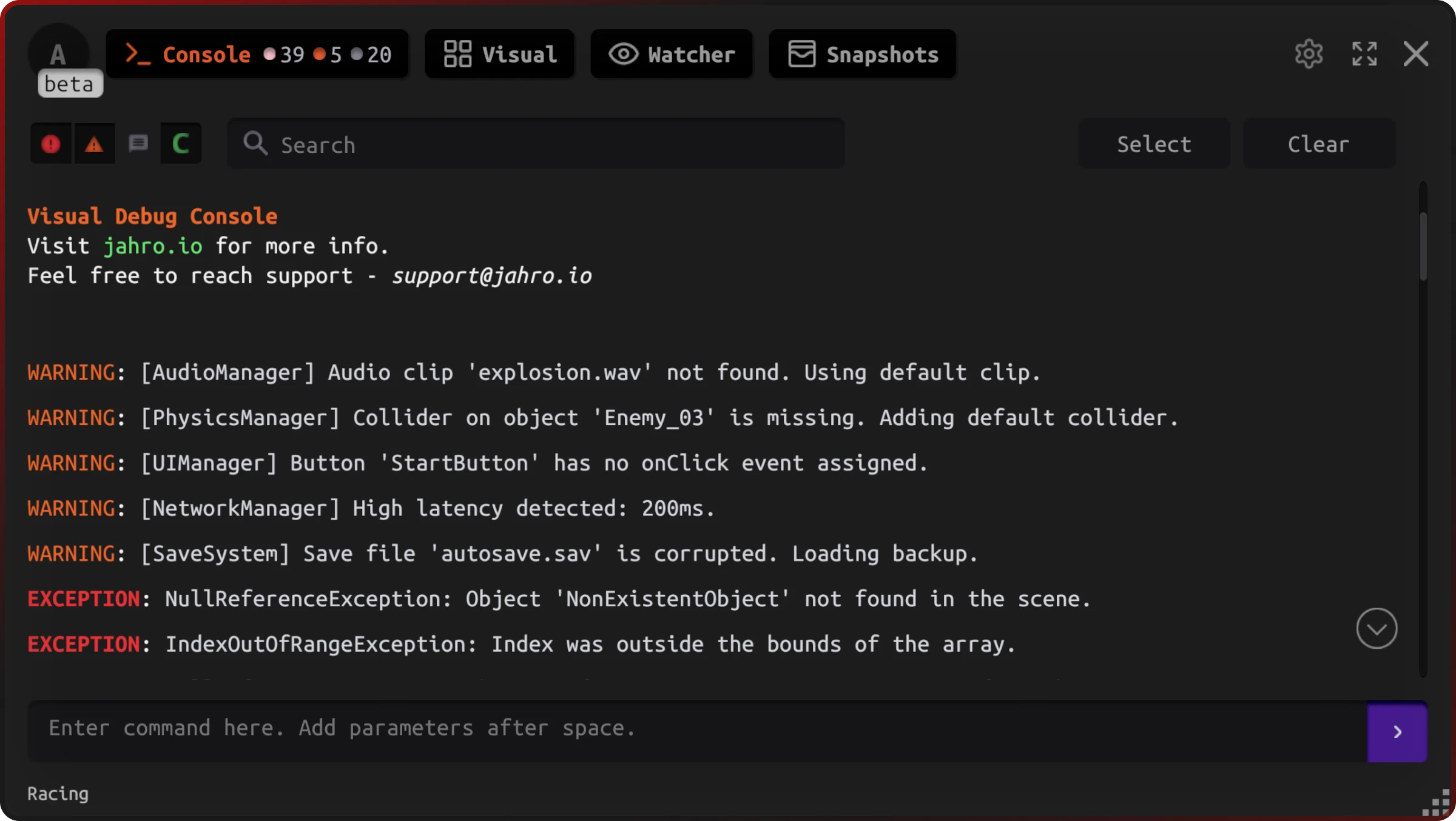
| Type | Color | Maps to |
|---|---|---|
| Debug | White | Debug.Log |
| Warning | Orange | Debug.LogWarning |
| Error | Red | Debug.LogError and exceptions |
| Commands | Green | Command output and results |
Search
Type in the search bar to filter log entries by content. Results update as you type.
Log Selection
Click Select to enter selection mode, then use checkboxes to pick individual log entries.
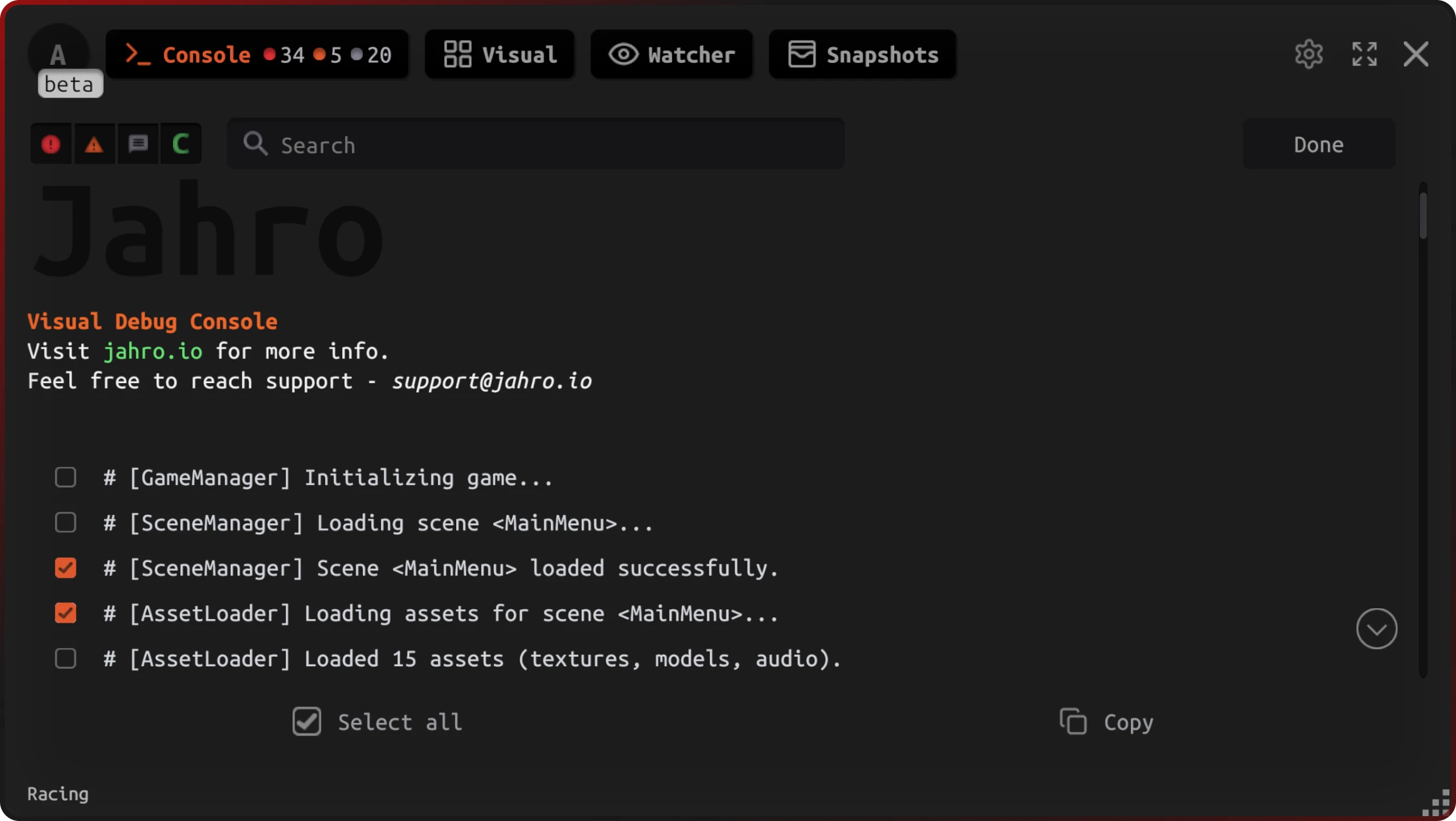
From there you can copy entries to clipboard or bulk-clear them from the session. Click Done to exit.
Stack Traces
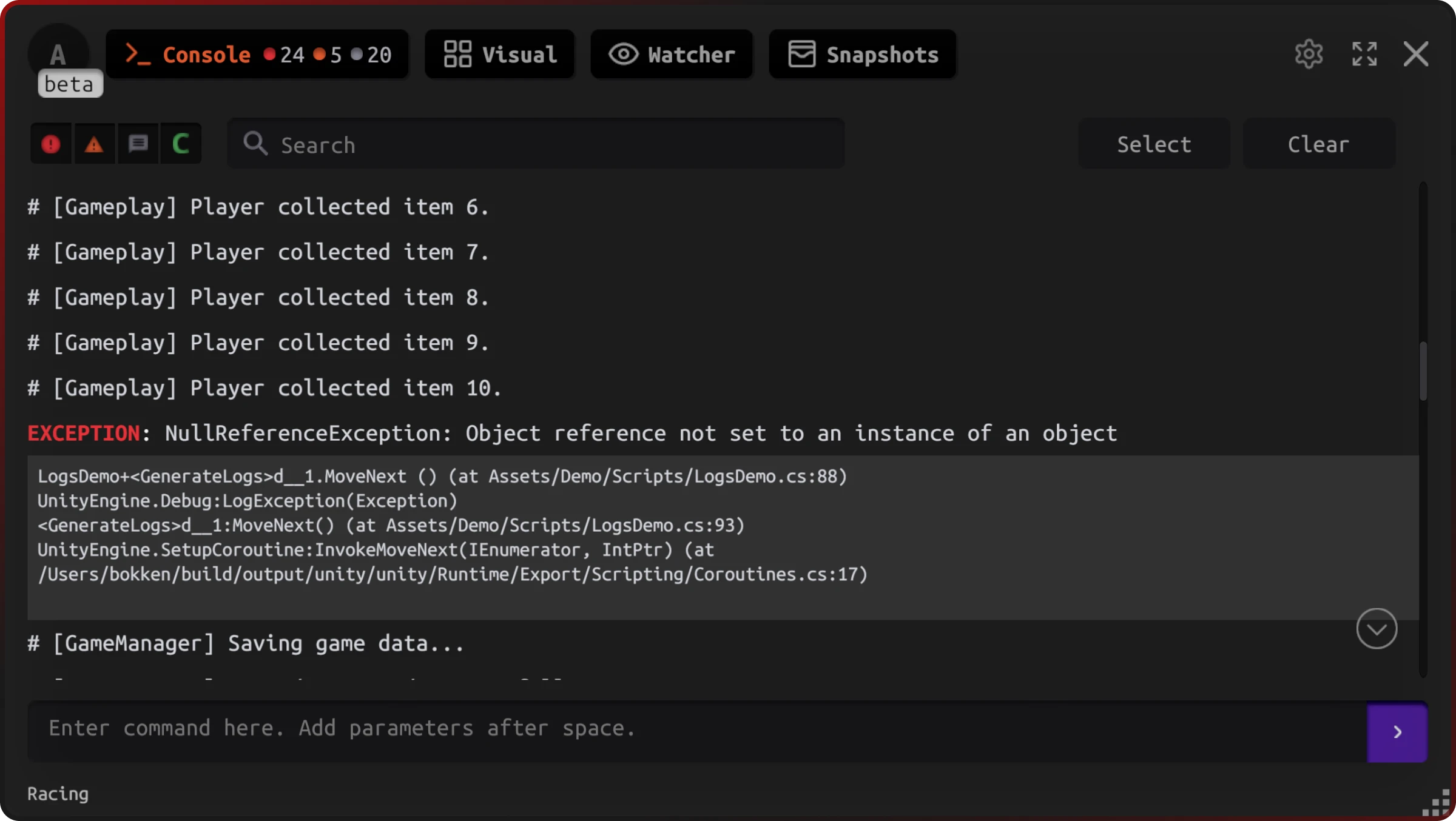
Click any log entry that has an attached stack trace to expand it. Click again to collapse.
Clearing Logs
Click Clear to remove all logs from the current session.
Related
- Commands — Define and register commands with
[JahroCommand] - Logs — Advanced log management and filtering
- Visual Mode — Browse and run commands without typing
- Snapshots — Capture and share a full debug session