Unity Variable Watcher — Real-time Monitoring
Debug.Log floods your console and loses context — Watcher pins specific variables to a live dashboard so you can see exactly what's changing as your game runs.
Add [JahroWatch] to any field or property. For instance members, call Jahro.RegisterObject(this) in OnEnable so Jahro holds a reference to the object and can read its values. Values are only polled when the Watcher tab is open — no overhead while you're not using it.
Setting up Watcher
Static watchers
Static fields and properties don't need registration. Decorate them and they appear in the Watcher tab immediately.
using JahroConsole;
using UnityEngine;

public static class GameStats
{
    [JahroWatch("Player Score", "Game Stats", "Current player score")]
    public static int PlayerScore = 0;

    [JahroWatch("Game Time", "Game Stats", "Time since game started")]
    public static float GameTime => GameTimer.time;
}
Instance watchers
Instance members need to be registered so Jahro can read them.
public class PlayerController : MonoBehaviour
{
    [JahroWatch("Health", "Player", "Current health points")]
    public float health = 100f;

    [JahroWatch("Position", "Player", "Player world position")]
    public Vector3 position => transform.position;

    [JahroWatch("Velocity", "Player", "Player movement velocity")]
    public Vector3 velocity => GetComponent<Rigidbody>().velocity;

    void OnEnable()
    {
        Jahro.RegisterObject(this);
    }

    void OnDisable()
    {
        Jahro.UnregisterObject(this);
    }
}
[JahroWatch] attribute reference
[JahroWatch(name, group, description)]| Parameter | Required | Default | Notes |
|---|---|---|---|
name | No | Field name, leading _ stripped | Display name in the Watcher tab |
group | No | "Default" | Groups related watchers into collapsible sections |
description | No | — | Shown in the detail modal when you click a watcher |
// Minimal — uses field name "playerHealth" as display name
[JahroWatch]
private float _playerHealth = 100f;

// Custom name and group
[JahroWatch("Player HP", "Vitals")]
public float playerHealth = 100f;

// Full specification
[JahroWatch("Battery Level", "System", "Device battery percentage and status")]
public static string BatteryStatus => GetBatteryInfo();
Interface overview
The Watcher tab organizes entries into collapsible groups. Star any entry to move it to Favorites at the top of the list.
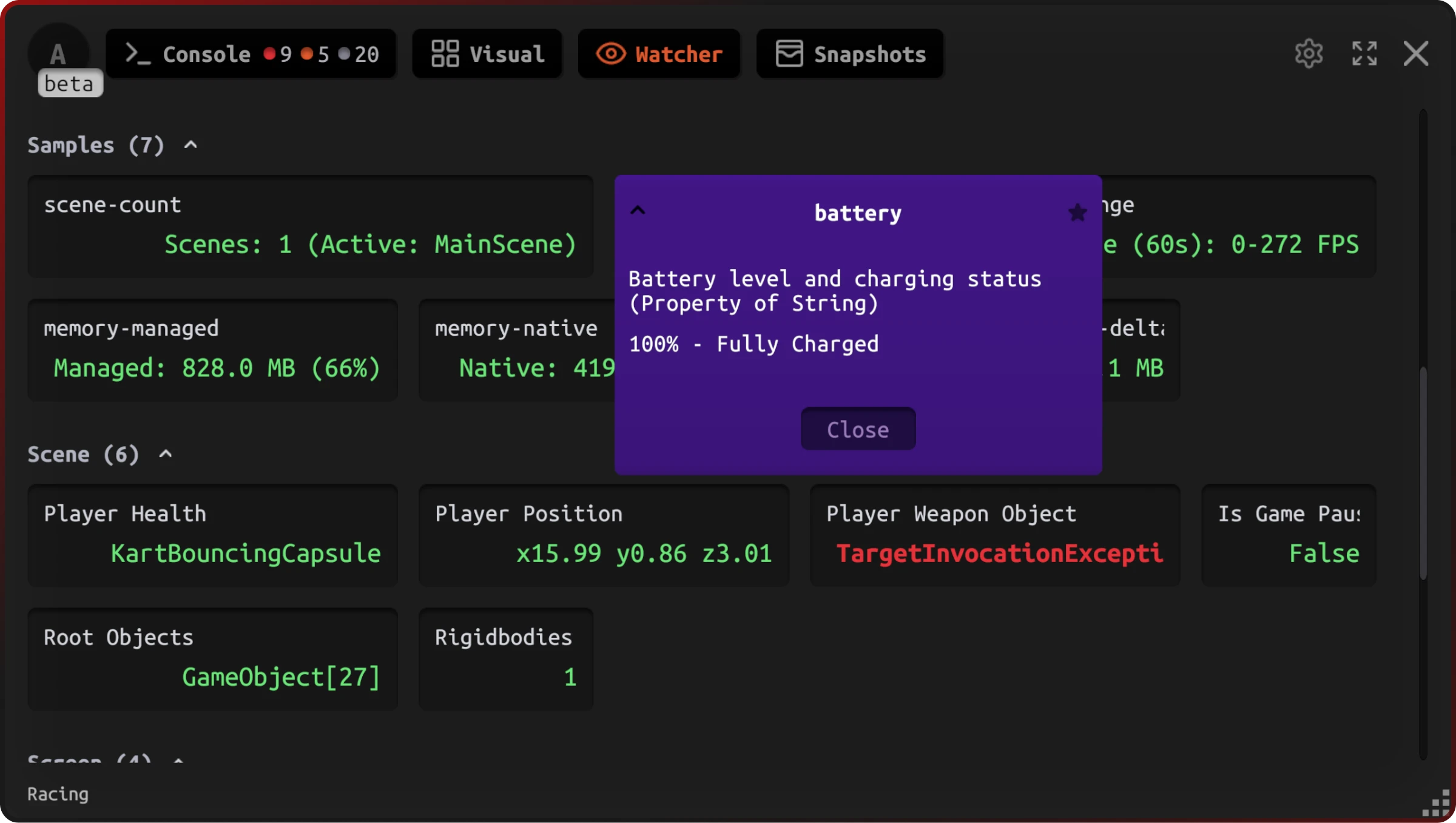
Groups appear in this order: Favorites first, then custom groups alphabetically, then the Default group.
Click any entry to open a detail modal with the full value, type info, and description.
Supported types
Watcher formats values based on type:
| Category | Types | List view | Detail modal |
|---|---|---|---|
| Primitives | int, float, double, bool | Raw value | Same |
| Strings | string | Truncated | Full text |
| Vectors | Vector2, Vector3 | Compact coordinates | Full breakdown + magnitude |
| Quaternion | Quaternion | Raw values | Raw + Euler angles |
| Transform | Transform | — | Position, rotation, scale, child count |
| Rigidbody | Rigidbody | — | Mass, kinematic, gravity, angular velocity |
| Collider | Collider | — | Trigger status, material, bounds |
| AudioSource | AudioSource | — | Clip, volume, loop, pitch, mute |
| Camera | Camera | — | FOV, clip planes, aspect ratio |
| Arrays | Any T[] | TypeName[length] | Full contents |
Null values, thrown exceptions, and invalid property access show as error messages. They don't crash the Watcher.
Advanced examples
Performance monitoring
Cache computed values at a fixed rate to avoid per-frame cost on expensive calculations while the Watcher tab is open.
public static class PerformanceWatcher
{
    private static float _lastUpdateTime;
    private static float _cachedFps;
    private static string _cachedMemory;

    static PerformanceWatcher()
    {
        Application.onBeforeRender += UpdateValues;
    }

    private static void UpdateValues()
    {
        if (Time.time - _lastUpdateTime < 0.25f) return; // 4Hz update rate

        _cachedFps = 1f / Time.unscaledDeltaTime;
        _cachedMemory = $"{(GC.GetTotalMemory(false) / 1024f / 1024f):F1} MB";
        _lastUpdateTime = Time.time;
    }

    [JahroWatch("FPS", "Performance", "Current frames per second")]
    public static string FPS => _cachedFps.ToString("F1");

    [JahroWatch("Memory", "Performance", "Managed heap memory usage")]
    public static string Memory => _cachedMemory;
}
Game state monitoring
public class GameManager : MonoBehaviour
{
    [JahroWatch("Game State", "Game", "Current game state")]
    public GameState currentState = GameState.Menu;

    [JahroWatch("Level Progress", "Game", "Current level completion percentage")]
    public float levelProgress => CalculateProgress();

    [JahroWatch("Player Count", "Game", "Number of active players")]
    public int playerCount => PlayerManager.ActivePlayers.Count;

    [JahroWatch("Enemy Count", "Game", "Number of active enemies")]
    public int enemyCount => EnemyManager.ActiveEnemies.Count;

    void OnEnable() => Jahro.RegisterObject(this);
    void OnDisable() => Jahro.UnregisterObject(this);
}
Physics debugging
public class PhysicsDebugger : MonoBehaviour
{
    [JahroWatch("Velocity", "Physics", "Rigidbody velocity")]
    public Vector3 velocity => GetComponent<Rigidbody>().velocity;

    [JahroWatch("Angular Velocity", "Physics", "Rigidbody angular velocity")]
    public Vector3 angularVelocity => GetComponent<Rigidbody>().angularVelocity;

    [JahroWatch("Is Grounded", "Physics", "Whether object is touching ground")]
    public bool isGrounded => Physics.Raycast(transform.position, Vector3.down, 0.1f);

    [JahroWatch("Collision Count", "Physics", "Number of active collisions")]
    public int collisionCount => GetComponent<Collider>().bounds.Intersects(groundBounds) ? 1 : 0;

    void OnEnable() => Jahro.RegisterObject(this);
    void OnDisable() => Jahro.UnregisterObject(this);
}
Gotchas
Always unregister in OnDisable. Skipping Jahro.UnregisterObject(this) leaves a stale reference after the object is destroyed. The entry stays visible in the Watcher tab and may throw null reference errors when Jahro tries to read its values.
Avoid expensive logic in watched properties. Watcher calls your getter on every refresh cycle while the tab is open. GetComponent<>() calls, LINQ queries, or physics casts inside a getter run continuously. Cache the result in a backing field and read from that — the performance monitoring example above shows this pattern.
Static watchers have no unregister path. They display for the entire domain lifetime. If you need conditional visibility, expose a flag that controls what the property returns rather than trying to remove the watcher dynamically.
AI-assisted watcher setup
The watcher agent skill teaches your AI coding assistant to generate correct [JahroWatch] attributes with supported types, registration lifecycle, and performance-safe patterns for expensive computations.
Tell your AI: "Monitor my player's health, position, and velocity at runtime" and it generates the attributes, registration, and cached getters where needed.
Frequently Asked Questions
How do I monitor Unity variables at runtime without Debug.Log?
Add the [JahroWatch] attribute to any field or property, then call Jahro.RegisterObject(this) in OnEnable. The variable appears in the Watcher tab and updates live as your game runs — no logs, no breakpoints.
What types of variables can Watcher monitor?
Watcher supports primitives (int, float, bool, string), Unity types (Vector2, Vector3, Quaternion, Transform), component types (Rigidbody, Camera, AudioSource), and any array type. Custom types display their ToString() value.
How is Watcher different from Unity's built-in Profiler? Unity's Profiler is for performance analysis in the editor. Watcher is for game state on actual devices — tracking player health, positions, state flags, and custom variables in live builds without the editor attached.
Can I watch variables on a real iOS or Android device? Yes. Watcher updates in real-time on device builds. Open the Jahro console on device and switch to the Watcher tab to see all registered variables.
Related
- Snapshots — Bundle Watcher state, logs, and screenshots into a shareable link
- Commands — Trigger state changes from the console while Watcher is running
- Logs — View log output alongside your watched variables
- API Reference — Full
JahroWatchandRegisterObjectAPI docs