UI Overview
Jahro's in-game debug console appears as a floating overlay in any Unity build — no editor required, no USB cable, no ADB.
Two entry points: a draggable launch button that stays on screen, and a main window that opens from it. Both remember their position between sessions.
Launch button
The launch button is the persistent entry point to the console. It floats over your game UI and stays visible until the main window opens.
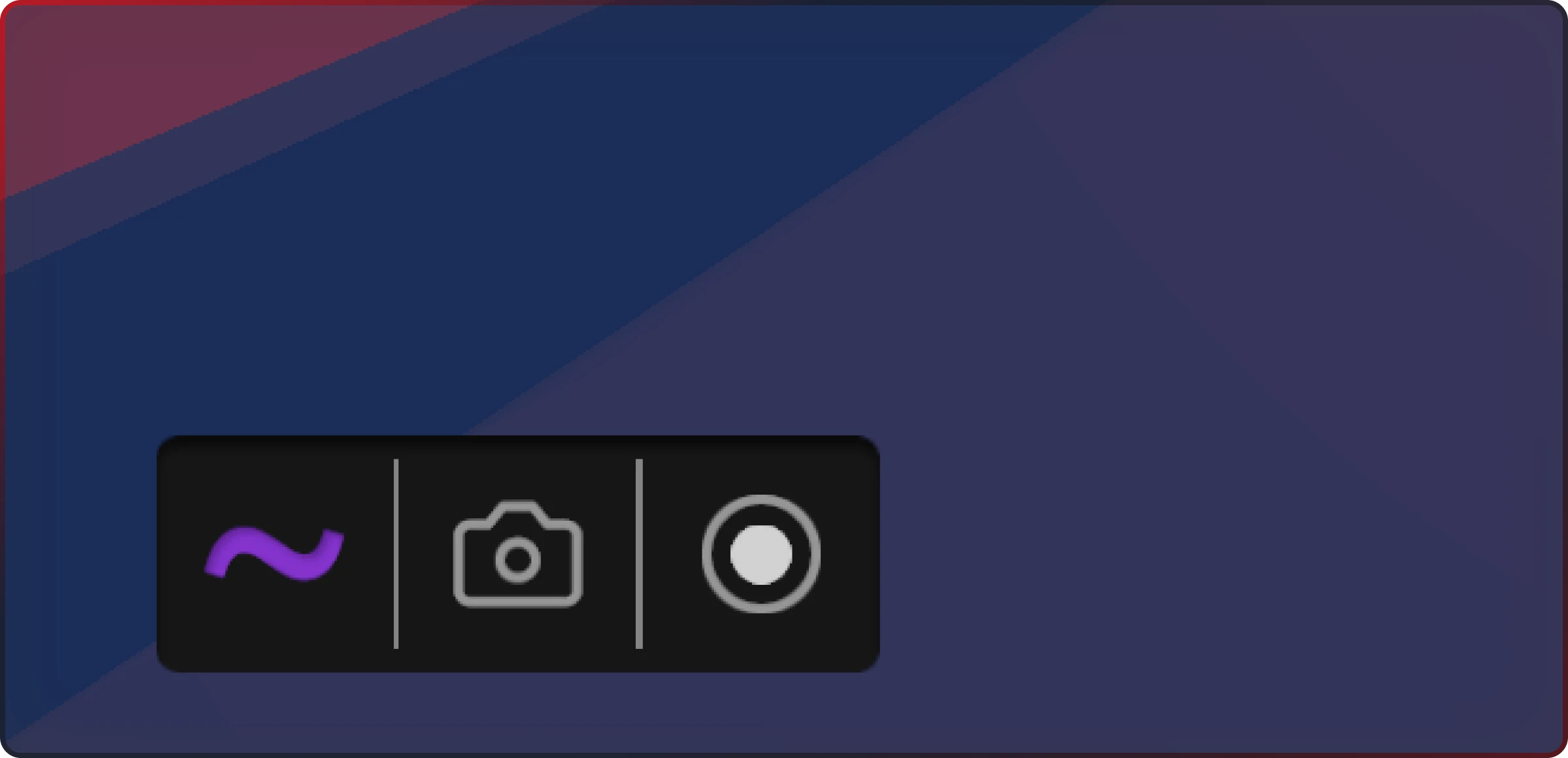
- Drag it anywhere on screen — position saves between sessions
- Disappears when the main window is open
- Shows notification badges for system alerts and command feedback
- Quick access to snapshot capture
Jahro.DisableLaunchButton();
Jahro.EnableLaunchButton();
Main window
Opens from the launch button or via keyboard shortcut. Tabs along the top give you access to every Jahro feature.
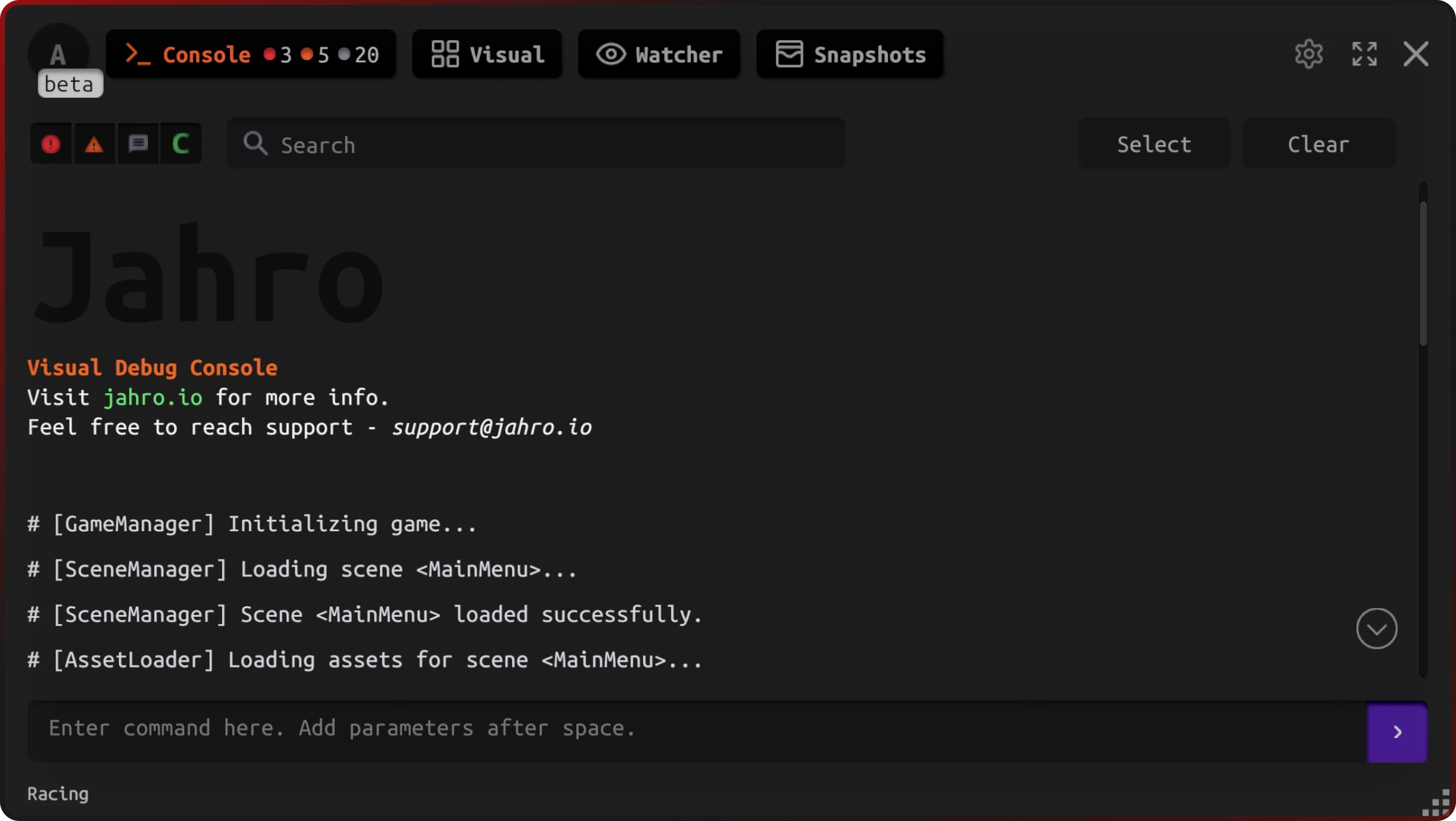
View modes
| Tab | What it does |
|---|---|
| Text Mode | Command-line interface with autocomplete |
| Visual Mode | Graphical command interface with parameter modals |
| Watcher | Live variable monitoring |
| Snapshots | Capture and upload debug sessions |
| Account | User info and team management |
| Settings | UI scale and window behavior |
Window behavior
- Resizable — minimum 420×250px
- Drag by the header to reposition
- Remembers size, position, and last active tab between sessions
- Stays within screen bounds — won't drift off-screen
- Fullscreen on mobile (automatic), optional on desktop
// Open or close programmatically
Jahro.OpenConsole();
Jahro.CloseConsole();

// Switch to a specific tab
Jahro.SwitchToMode(ConsoleMode.Text);
Jahro.SwitchToMode(ConsoleMode.Watcher);
Mobile behavior
On mobile, the main window goes fullscreen. Open it with a triple-tap near the top of the screen (configurable in Jahro Settings).
Touch controls are sized for fingers. Swipe, pinch, and tap all work.
Keyboard shortcuts
| Shortcut | Action |
|---|---|
` (Tilde) | Toggle console open/close |
Alt + 1 | Switch to Text Mode |
Alt + 2 | Switch to Visual Mode |
Alt + 3 | Switch to Watcher |
Alt + 4 | Switch to Snapshots |
Escape | Close console |
Shortcuts are configurable in Jahro Settings.
UI settings
Access these under the Settings tab in the main window.
| UI scale | Use case |
|---|---|
| Small | Compact displays or when screen space is tight |
| Default | Standard size for most setups |
| Large | Better readability on high-DPI or large screens |
Keep in Window Bounds — prevents the window from being dragged partially off-screen.
Related docs
- Text Mode — command input, autocomplete, and log filtering
- Visual Mode — graphical command interface with parameter forms
- Watcher — monitor live variables and game state at runtime
- Snapshots — capture and share debug sessions with your team
- Jahro Settings — API keys, shortcuts, and behavior configuration
- API Reference — full programmatic control
- Web Console Overview — how sessions appear on the Jahro web dashboard