Web Console Structure
The web console organizes your Unity debug data into three levels: Team → Project → Snapshot.
Team
└── Project
    ├── API Keys
    └── Snapshot
        ├── Logs
        └── Screenshots
Teams
The team is the top-level container. All projects, snapshots, and members belong to a team. Data is fully isolated between teams; there's no cross-team access.
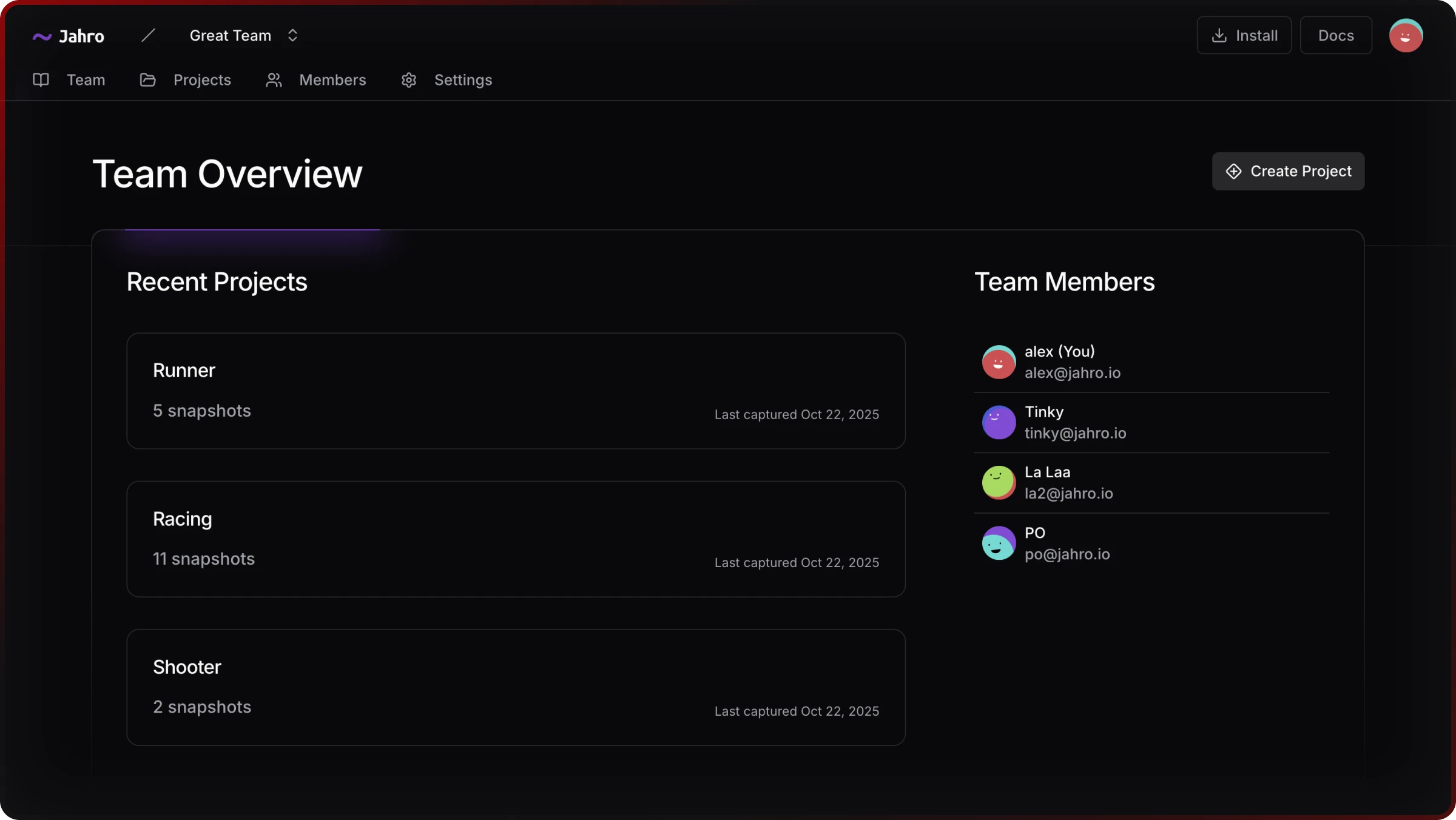
From the team dashboard you can:
- View recent projects and team activity
- Manage members and roles (Owner, Admin, Member). See Team Management.
Projects
Projects map to your Unity games or applications. Each project has its own API keys and its own snapshot collection.
From a project you can:
- Browse all captured debug sessions for that game
- Generate API keys for Unity client integration
- Configure project settings
If you're working on multiple builds of the same game (e.g. a QA build and a dev build), use separate projects to keep their snapshot histories distinct.
Snapshots
A snapshot is one captured debug session. It contains the full log history, screenshots, and device metadata recorded during that session.
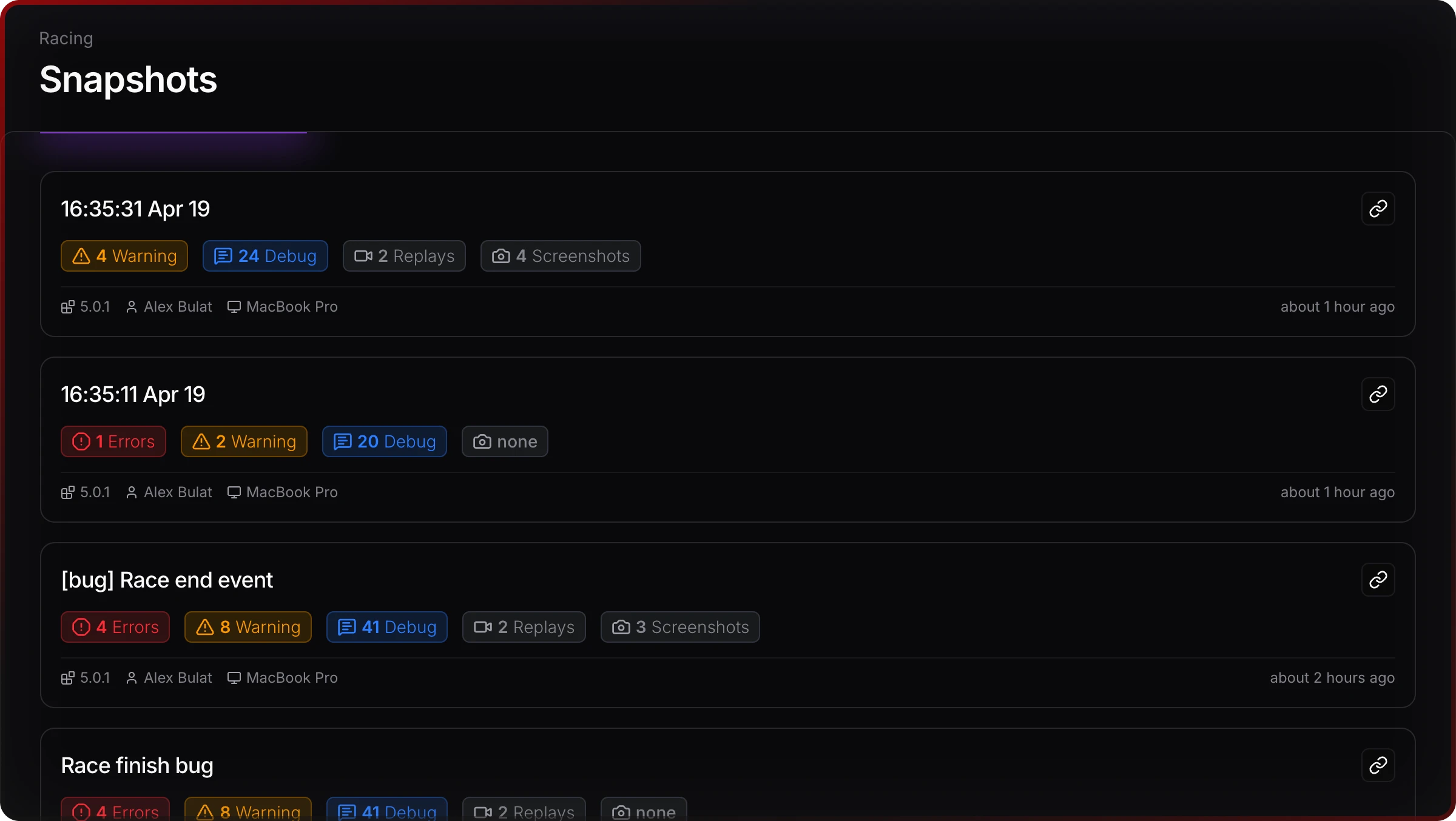
Inside a snapshot:
- Logs: full log history with filtering and search, including stack traces
- Screenshots: all screenshots captured during the session, with lightbox view
- Metadata: device name, platform, Unity version, and timestamp
Snapshots can be shared via link. See Snapshots for sharing options.
API Keys
API keys live at the project level. Each key ties a Unity build to a specific project; data from that build goes only to that project. Use separate keys per build if you want to keep snapshot histories separate.
Related
- Team Management: invite members, assign roles
- Snapshots: capture, browse, and share debug sessions
- Logs Viewer: filter and search logs inside a snapshot
- Getting Started: install Jahro and connect your first project