Team Management
When developers and QA testers share a Jahro project, roles control who can invite members, manage debug sessions, and access billing.
Every team member holds exactly one role, scoped at the team level. You assign the role at invite time and can change it at any time.
Roles at a glance
| Role | Typical user | Key access |
|---|---|---|
| Owner | Account creator | Full access — billing, ownership transfer, all settings |
| Admin | Team lead, project manager | Manage members and integrations; no billing access |
| Member | Developer, QA tester | Create and view debug sessions, logs, screenshots |
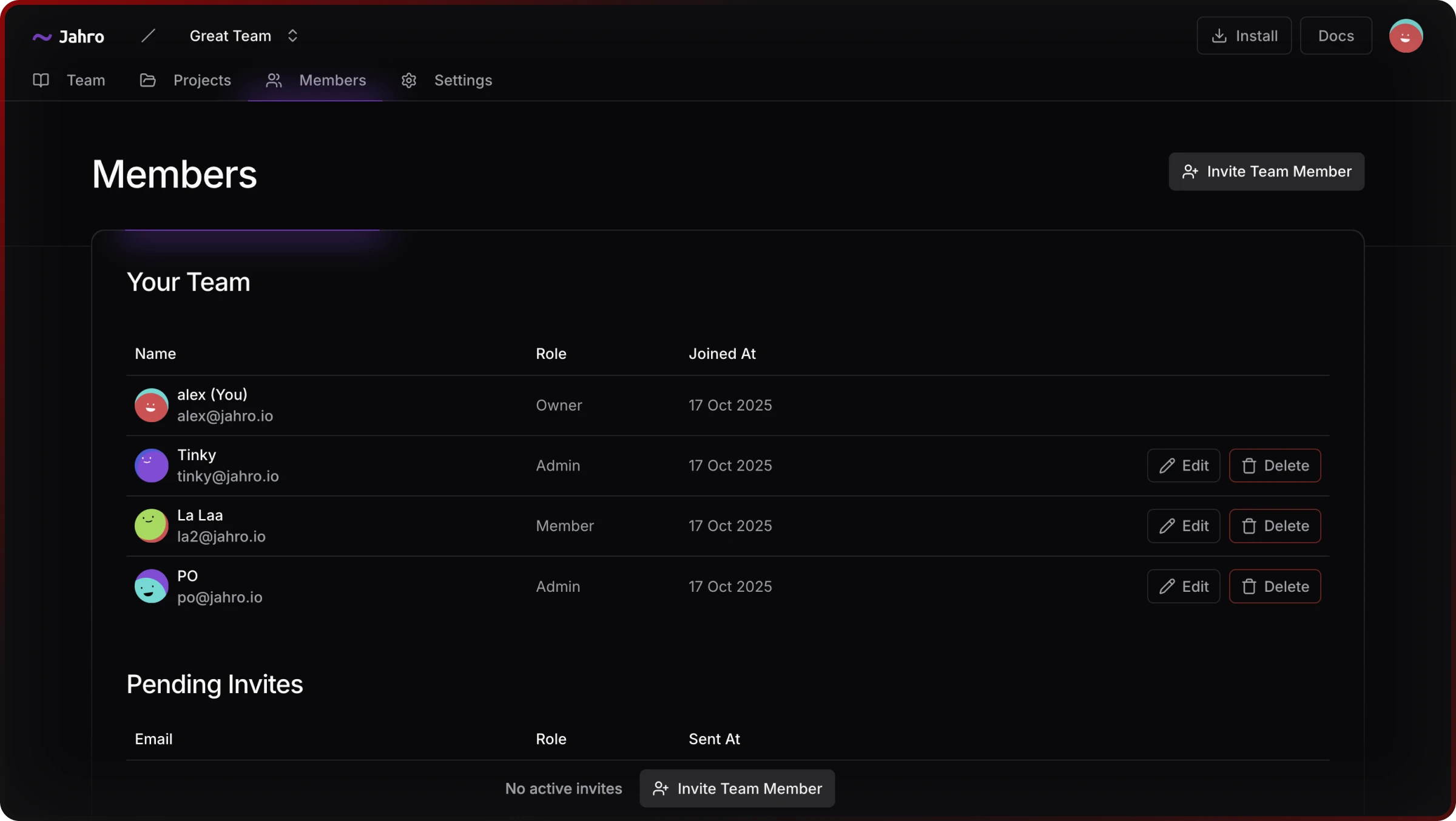
Role details
Owner
Automatically assigned to the user who creates the team account. There is exactly one Owner per team.
Can:
- Manage all account and product settings
- Control billing and subscription plan
- Assign and revoke roles for any team member
- Transfer ownership to another user
Admin
For team leads managing day-to-day debugging.
Can:
- Invite, remove, and reassign roles (except Owner)
- Configure product integrations
- Access all team content — sessions, logs, snapshots
Cannot:
- Modify billing or payment information
- Transfer ownership
- Delete the team account
Member
Default role for developers and QA testers.
Can:
- Create, view, and edit debug sessions, logs, and screenshots
- Access all snapshots shared within the team
Cannot:
- Access team settings, billing, or integrations
- Invite or remove other users
- Modify any role assignments
Inviting team members
- Open the Team section in the web console
- Enter the invitee's email address
- Select their role
- Send the invite
The invitee receives an email with instructions to join. If they don't have a Jahro account, the invite flow creates one.
Gotchas
One Owner only. You cannot have two Owners simultaneously. To change who owns the team, transfer ownership first — this immediately removes the Owner role from the current holder.
Owners cannot demote themselves. Transfer ownership to another member before making any Owner-level role changes.