Unity Console Commands & Cheats
Rebuilding to test a parameter change slows iteration — Jahro's command system exposes any C# method to an in-game console available in all builds, including iOS and Android device builds.
Register commands with the [JahroCommand] attribute or the programmatic API. Jahro discovers annotated methods at startup automatically — no manual wiring required. Commands work in both text and visual modes and are accessible on mobile by triple-tapping the screen.
Creating commands
Attribute-based commands
Add [JahroCommand] to any static method. Jahro discovers these at startup and makes them available in both text mode and visual mode.
The attribute accepts up to three positional arguments: name, group, and description. All are optional.
using JahroConsole;
using UnityEngine;

public class GameDebug
{
    // Full signature: name, group, description
    [JahroCommand("reset-game", "Game", "Reset the current game state")]
    public static void ResetGame() { }

    // Name inferred from method name → "Ping"
    [JahroCommand]
    public static void Ping()
    {
        Debug.Log("pong");
    }

    // Group only; name from method → "SpawnEnemy"
    [JahroCommand("spawn-enemy", "Spawning")]
    public static void SpawnEnemy() { }
}
Name defaults:
- Omit
name→ Jahro uses the method name - Omit
group→ defaults to"Default" - Spaces in command names are stripped silently — use kebab-case to keep names readable in both modes
Instance commands
For commands that operate on a specific MonoBehaviour, register the object so Jahro can access its instance methods and fields. Registration also enables Watcher for the same object.
public class GameRuntime : MonoBehaviour
{
    void OnEnable()  => Jahro.RegisterObject(this);
    void OnDisable() => Jahro.UnregisterObject(this);

    [JahroCommand("set-difficulty", "Game", "Set difficulty by enum")]
    public void SetDifficulty(Difficulty level) { }

    [JahroWatch("Player HP", "Vitals", "Current hit points")]
    public int playerHp;
}
RegisterObject scans the object for both [JahroCommand] methods and [JahroWatch] fields, registering both in one call.
Dynamic commands
Register commands at runtime using delegates. Useful for commands created conditionally or integrated with systems you can't annotate.
// No parameters
Jahro.RegisterCommand("clear-cache", "Maintenance", "Clear local cache", () =>
{
    System.GC.Collect();
});

// With parameters — generic overloads for Action<T>, Action<T1,T2>, Action<T1,T2,T3>
Jahro.RegisterCommand<int>("add-lives", "Cheats", "Add player lives", (amount) =>
{
    // Add lives logic
});

Jahro.RegisterCommand<int, float>("set-mult", "Tuning", "Set damage mult and cooldown", (damageMult, cooldown) =>
{
    Tuning.DamageMultiplier = damageMult;
    Tuning.Cooldown = cooldown;
});
Running commands
Text mode
Type the command name followed by space-separated arguments. Jahro provides autocomplete for command names and parameter hints.
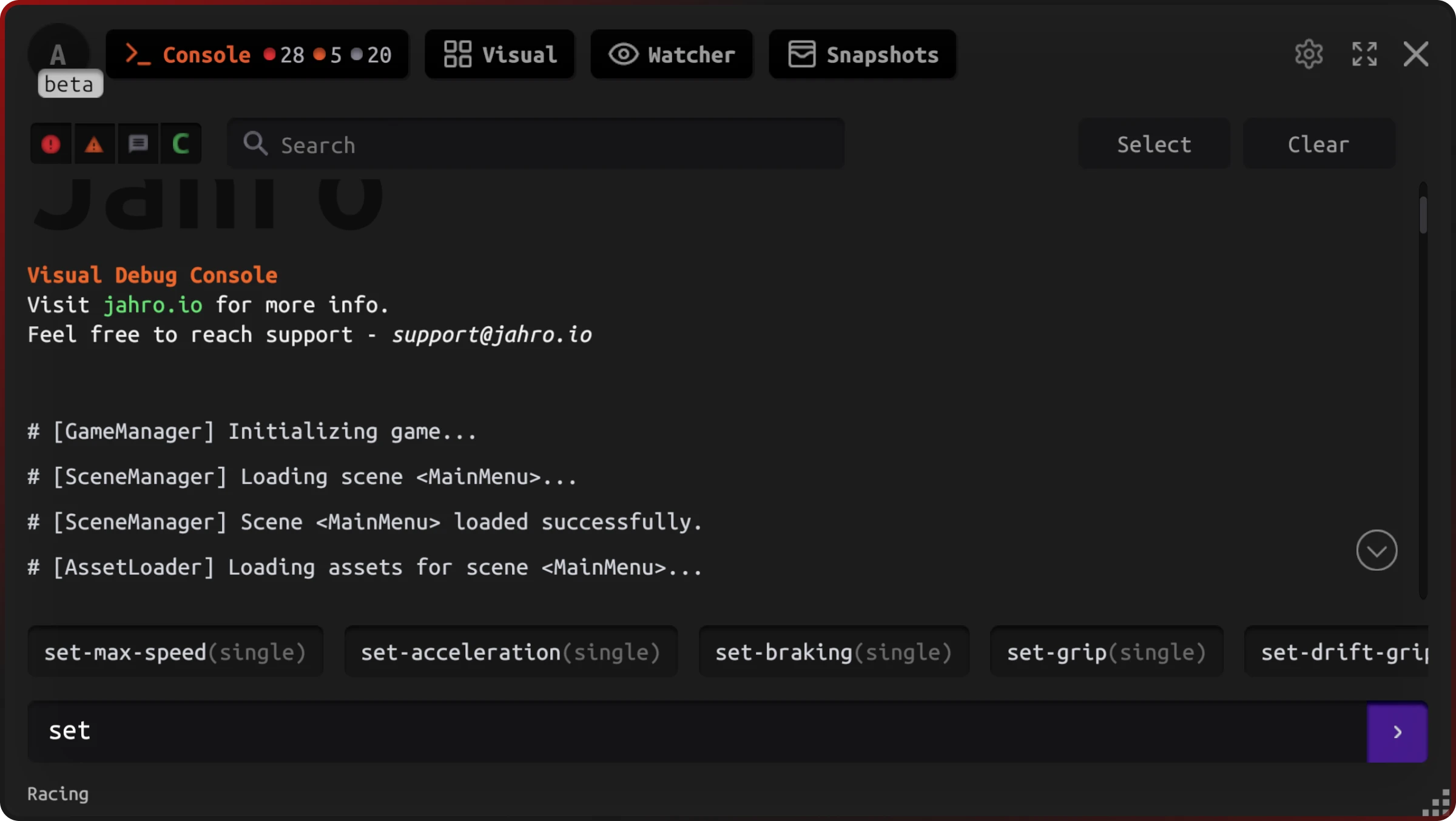
Examples:
reset-gameset-difficulty Hardtp 10 2.5 -7— Vector3 as three space-separated floatsadd-lives 5
The console converts string input to the target parameter type automatically and handles overload resolution when multiple signatures share the same command name.
Visual mode
Visual mode groups commands by category and renders form inputs for each parameter. Tap to expand, fill the inputs, and submit — no typing required.
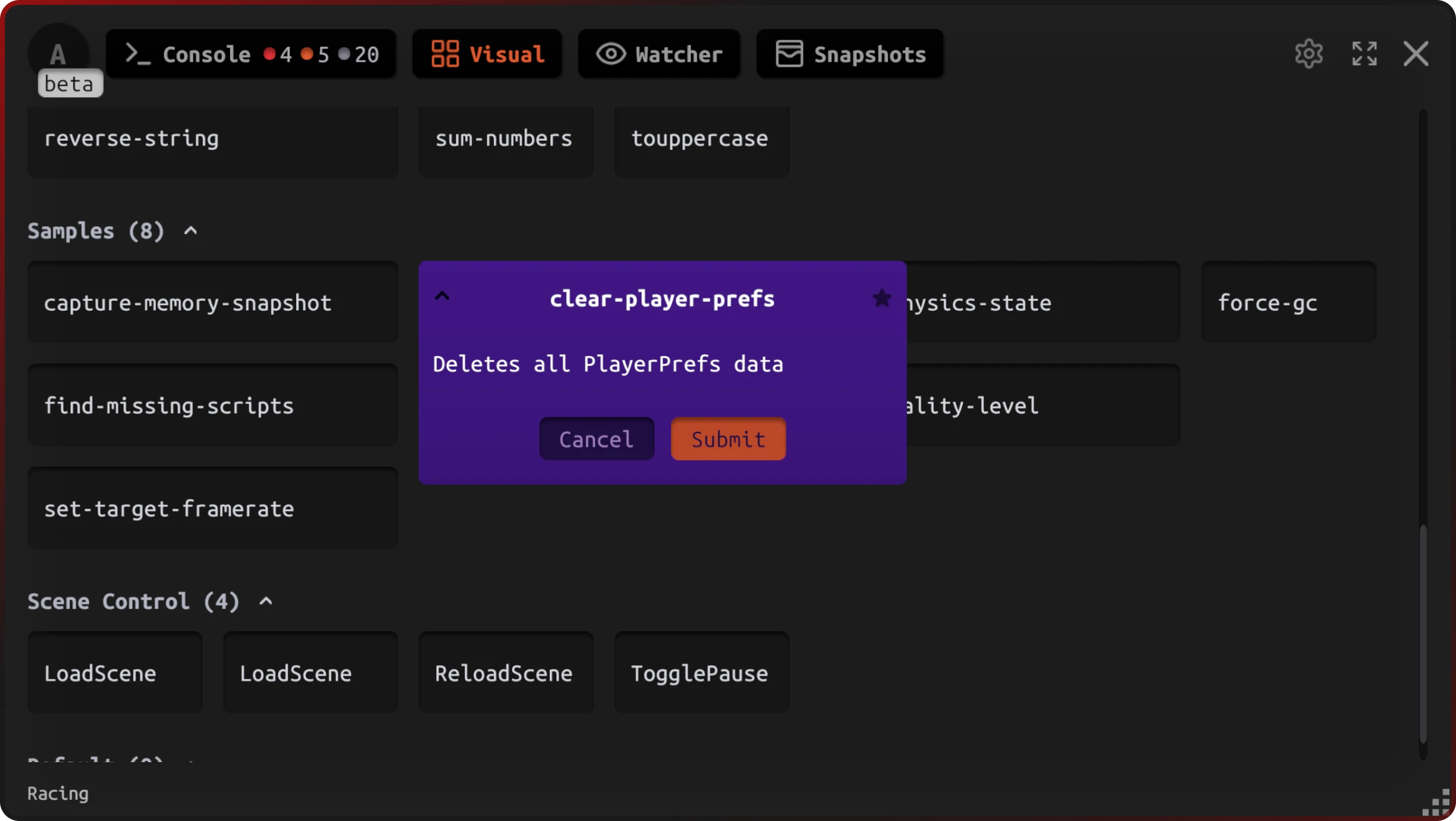
Visual mode is the preferred interface on mobile, especially for commands with multiple parameters.
Parameter handling
Jahro converts text input to the type expected by your method. Supported types:
- Primitives:
int,float,bool,string - Unity types:
Vector2,Vector3 - Enums: any enum type defined in your project
- Arrays: pass multiple values space-separated (e.g.
batch-set 1 2 3 4)
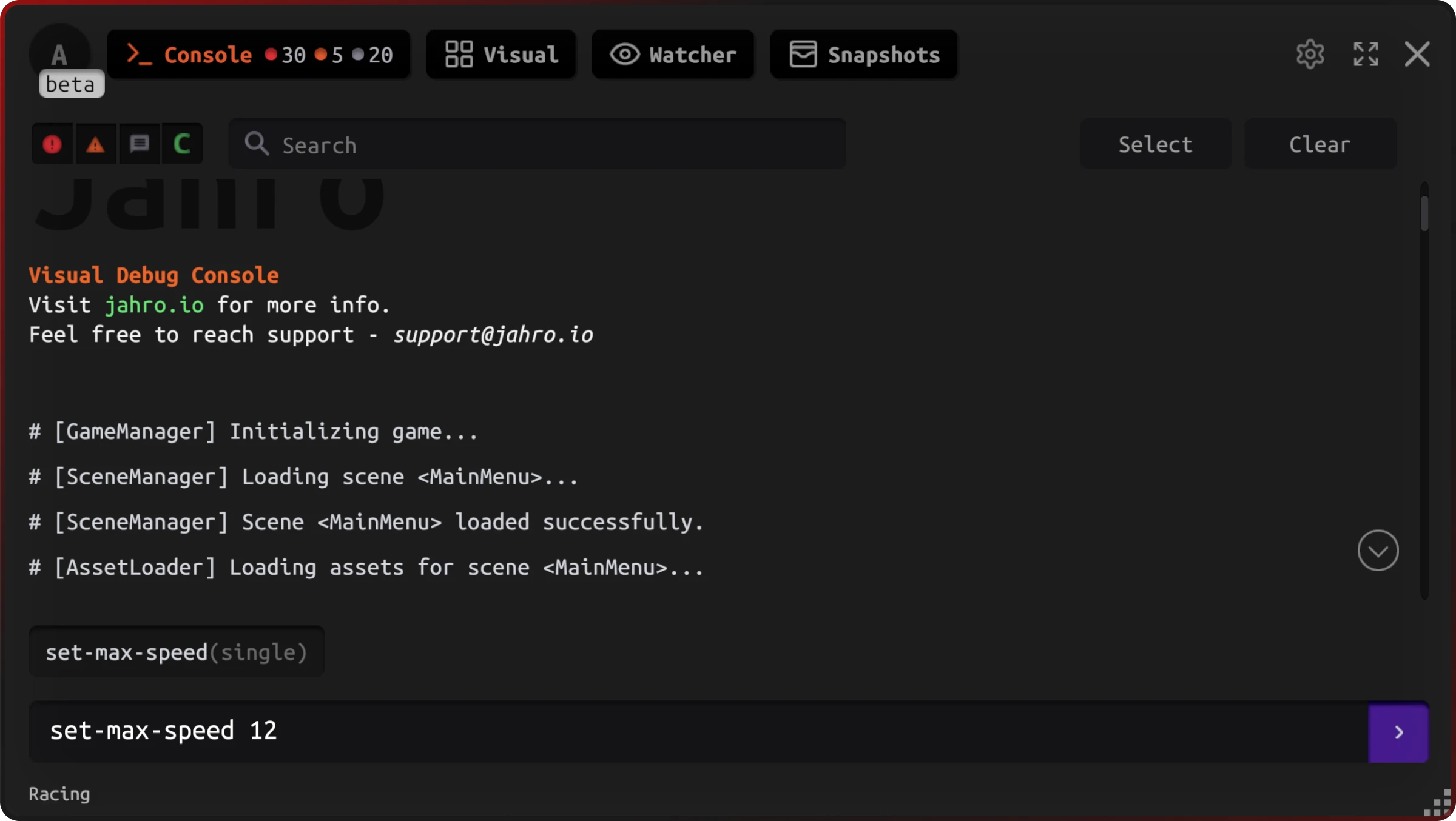
When multiple signatures share the same command name, Jahro picks the best match by parameter count and successful type conversion. If no match exists, the console prints the accepted signatures.
Command organization
The same command name can carry multiple signatures — Jahro treats them as overloads.
[JahroCommand("spawn-enemy", "Spawning", "Spawn an enemy at a position")]
public void SpawnEnemy(Vector3 position) { }

[JahroCommand("spawn-enemy", "Spawning", "Spawn multiple enemies")]
public void SpawnEnemy(int count) { }
Use kebab-case names and group related commands into shared group strings (e.g. "Cheats", "Spawning", "Tuning"). This determines how commands appear in visual mode.
Return values
Commands can return a string. Jahro prints the return value directly to the console — useful for querying game state without adding log statements.
[JahroCommand("get-position")]
public static string GetPlayerPosition()
{
    return $"X: {Player.Position.x}, Y: {Player.Position.y}";
}
Gotchas
- Instance methods need
Jahro.RegisterObject(this)or they won't show up in the console. If[JahroCommand]is on an instance method and you skip registration, the command is invisible. - Always call
Jahro.UnregisterObject(this)inOnDisable. Destroying an object without unregistering leaves a stale reference in Jahro. - Spaces in command names are stripped silently.
"spawn enemy"becomesspawnenemyat runtime — use kebab-case ("spawn-enemy") instead. - Static methods don't need registration.
Jahro.RegisterObjectis only for instance methods and[JahroWatch]fields. - Keep command bodies thin. Call into your existing systems rather than putting logic directly in commands — it makes them easier to test and avoids side-effects that are hard to trace.
AI-assisted command generation
The commands agent skill teaches your AI coding assistant to generate correct [JahroCommand] attributes, RegisterObject boilerplate, and dynamic registration — so generated code works on the first try.
Tell your AI: "Add debug commands to my PlayerController" and it handles parameter order, static vs instance detection, lifecycle, and group organization automatically.
Frequently Asked Questions
How do I add console commands to a Unity game?
Add the [JahroCommand] attribute to any static or instance method in your project. Jahro discovers these methods automatically. For instance methods, call Jahro.RegisterObject(this) in OnEnable.
Do Unity console commands work in mobile builds? Yes. Jahro commands work in all builds including iOS and Android device builds — not just in the Unity Editor. Open the console on mobile by triple-tapping the screen.
Can I add cheat codes to a Unity game without rebuilding?
Yes. Commands compiled with [JahroCommand] are part of your existing build. You can test different parameter values without triggering a rebuild.
What parameter types does Jahro support for commands?
int, float, bool, string, Vector2, Vector3, enums, and arrays. Parameters are automatically converted from text input.
How is Jahro's command system different from SRDebugger? SRDebugger provides basic on-device logging. Jahro adds runtime commands with parameter support, a visual command browser, team sharing, and cloud snapshots — all without additional setup.
Related docs
- Watcher — Monitor variables live alongside your commands
- Logs — View and filter Unity logs in-game on device
- Snapshots — Capture and share full debug sessions with your team
- UI: Text Mode — Text console reference
- UI: Visual Mode — Visual command browser reference
- API Reference — Full
JahroandJahroCommandAPI