Jahro Settings
Jahro Settings is one window for your API key, debug console controls, and snapshot configuration.
Open it from Unity's menu bar: Tools → Jahro Settings
The window has three tabs:
- Account — API key and project info
- General Settings — enable/disable controls, launch shortcuts, assembly scanning
- Snapshots Settings — local vs. cloud upload mode
Account
Project information
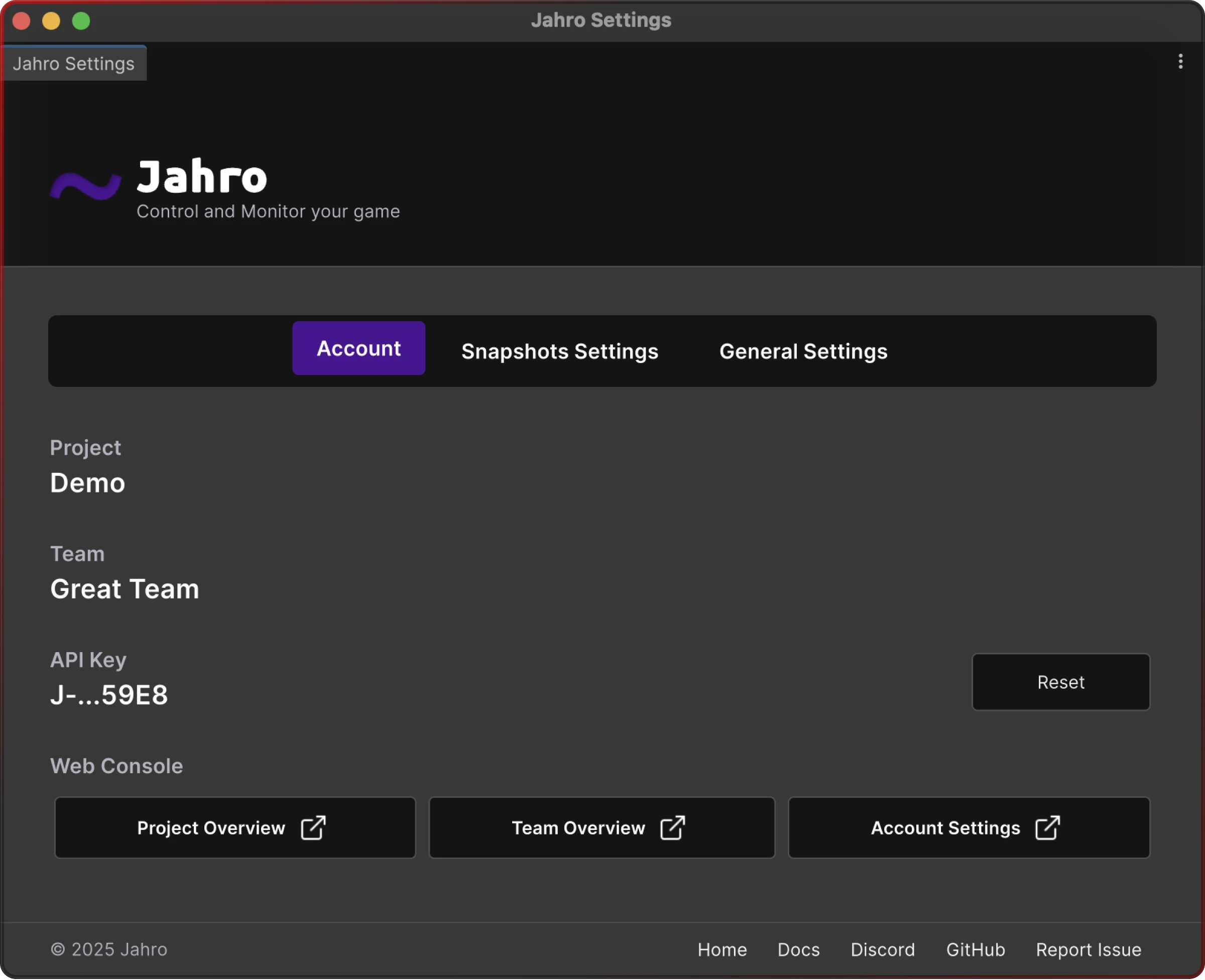
After you enter a valid API key, the Account tab shows your project identifier, the team linked to your project, and a masked version of the active key.
API key
The API key ties your Unity project to the Jahro web console. From this tab you can:
- View the current key (partially masked)
- Reset to enter a new key
- Validate — the key is checked automatically each time you open Settings
General Settings
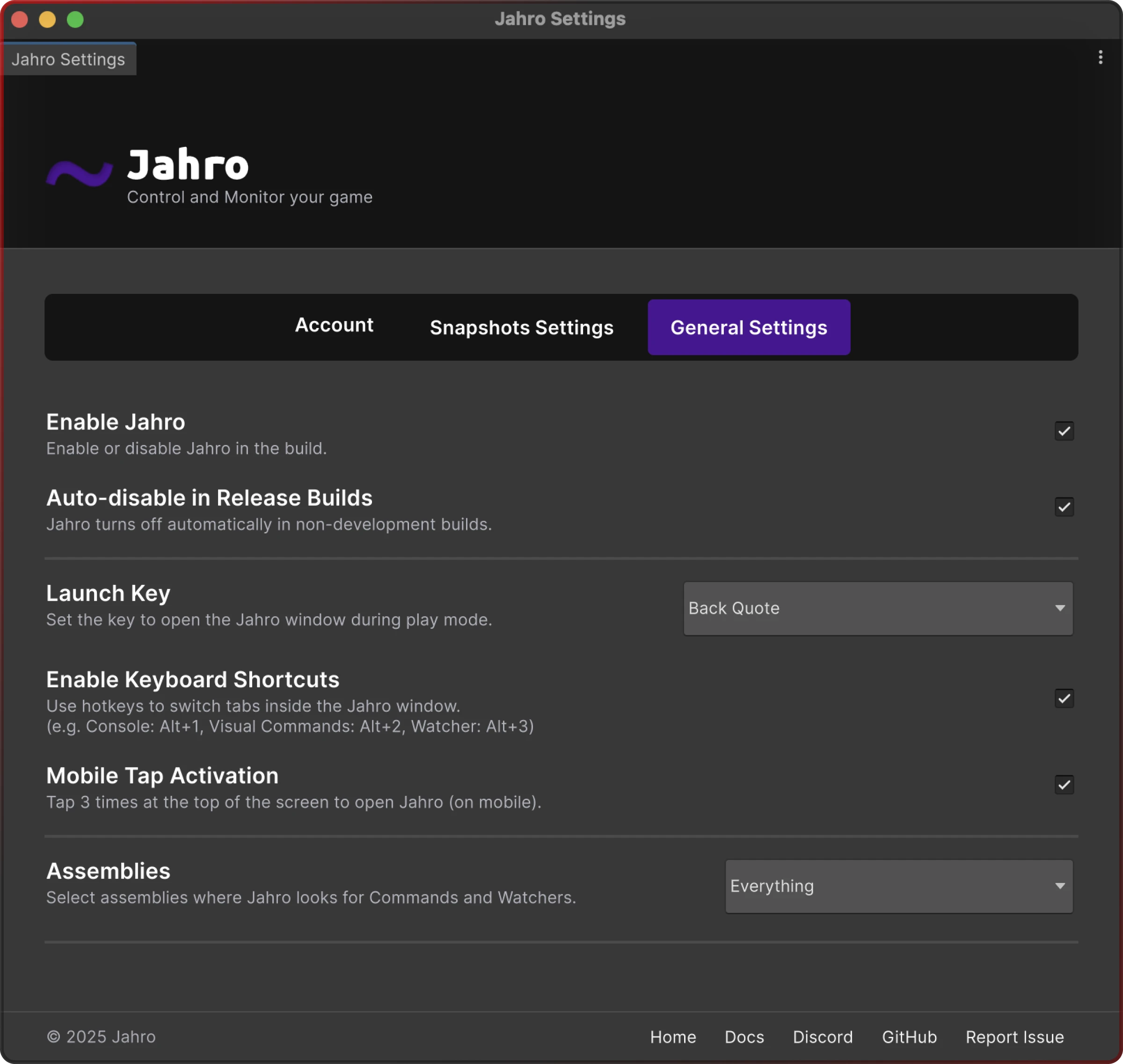
Enable Jahro
Main toggle for all Jahro functionality. Keep this on during active development.
Auto-disable in Release Builds
When on, Jahro is automatically inactive in non-development builds. This prevents the debug console from shipping to players and removes any runtime overhead in release builds.
Launch controls
| Setting | Description |
|---|---|
| Launch Key | Keyboard shortcut to open Jahro in play mode. Default: Tilde (~). Accepts any Unity KeyCode value. |
| Enable Keyboard Shortcuts | Hotkeys to switch tabs: Console (Alt+1), Visual Commands (Alt+2), Watcher (Alt+3), Snapshots (Alt+4). |
| Mobile Tap Activation | Triple-tap the top of the screen to open Jahro on a device. Required for mobile debugging workflows where a keyboard isn't available. |
Assembly configuration
Jahro scans selected assemblies to discover [JahroCommand] registrations and Watcher targets.
Limits: Up to 31 user assemblies. Unity system assemblies are automatically excluded.
Recommended selections:
- Your main game assembly
- Jahro assemblies (required to access Samples)
Gotcha: If you add a new assembly containing commands or watchers after initial setup, open Settings and add it to the selection — Jahro won't scan it otherwise.
Snapshots Settings
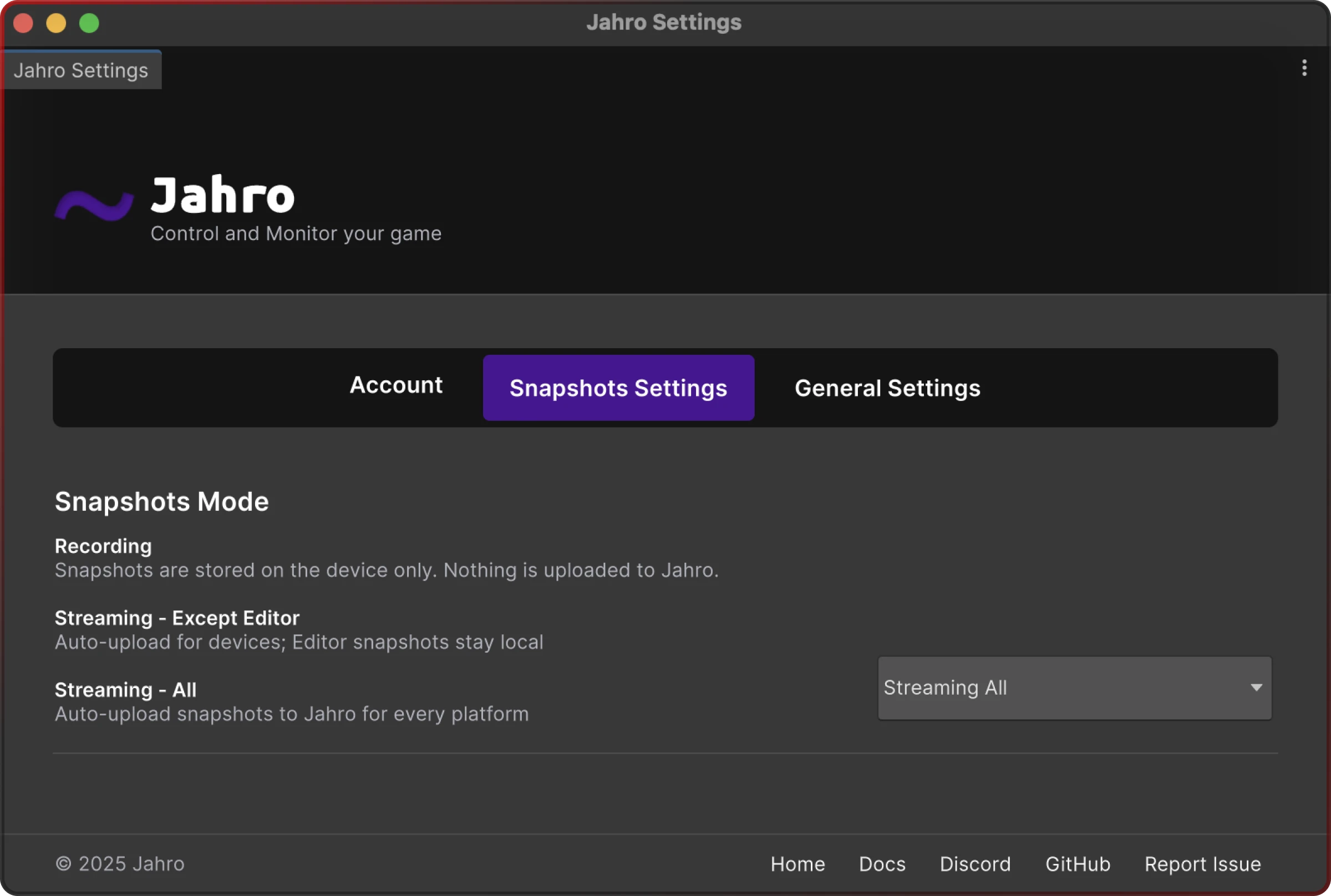
Choose how snapshots are stored. See Snapshots for full details on what snapshots capture.
| Mode | Behavior |
|---|---|
| Recording | Snapshots are stored locally on the device only. No upload. |
| Streaming — Except Editor | Auto-uploads snapshots from mobile and standalone builds. Editor snapshots stay local. Use this during active mobile development. |
| Streaming — All | Auto-uploads from all platforms, including the Editor. Use this for full-team debugging where everyone needs to see snapshots in the web console. |
Settings persistence
All settings write to Assets/Jahro/Resources/jahro-settings.asset.
Commit this file to source control. It keeps the team on the same configuration (API key, assembly selections, snapshot mode) so nobody has to set things up from scratch.
Gotcha: If you exclude this file from version control (e.g. via
.gitignore), each developer will need to re-enter the API key and redo all settings locally.
Related topics
- Getting Started — initial installation and API key setup
- Lifecycle — how Jahro initializes at runtime
- Snapshots — what snapshot modes capture and when to use each
- Commands — registering commands that Jahro discovers via assembly scanning
- API Reference — programmatic configuration options