Session Replay in the Web Console
When a Jahro snapshot includes Session Replay, the web console shows video and logs on one timeline. QA gets a shareable link with full context; developers can jump from a stack trace to the frame that was on screen — no cable, no “send me a screen recording,” no guessing what happened before the error.
This page covers where replay appears in the console, how the Video Timeline and player behave, and how segment states map to what you see while footage is still processing.
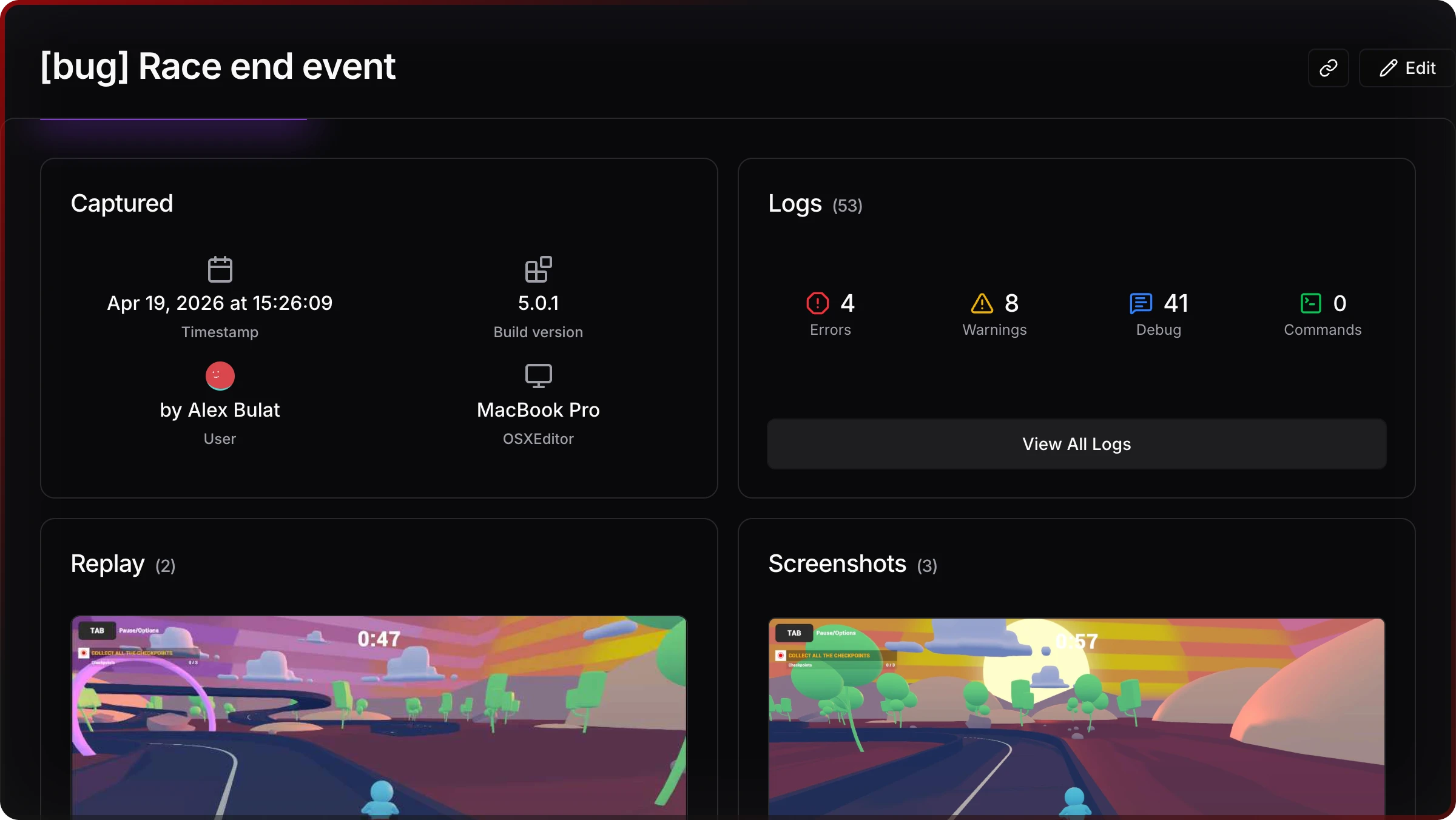
Where replays appear
Session Replay shows up in two places inside a snapshot session:
-
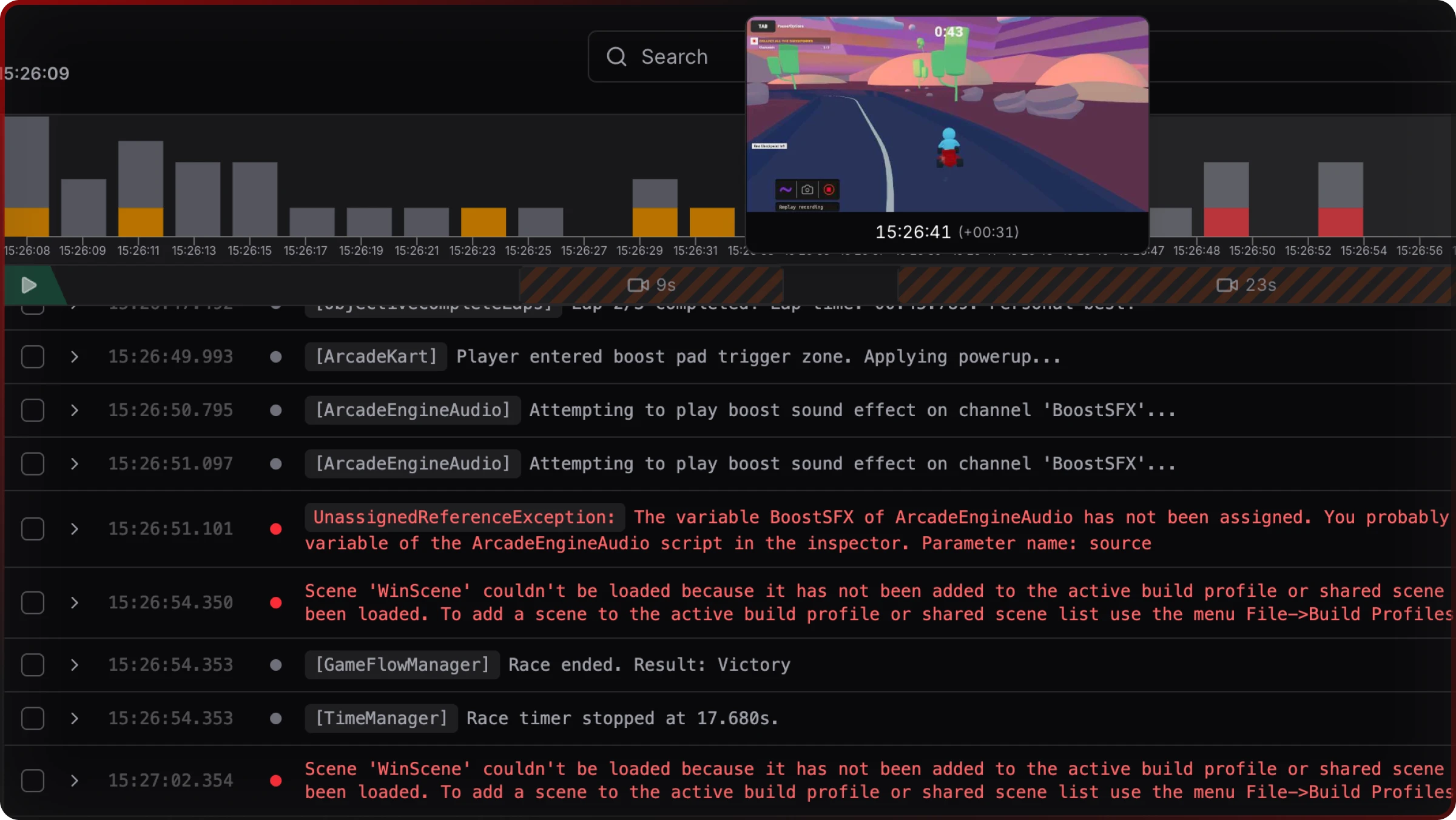
Logs tab — Video Timeline strip. A horizontal strip sits above the log table when the snapshot contains replay data. Hover to preview frames; click to open the full player at that moment.
-
Media tab. Screenshots, video segments, and the Combined Replay (when present) appear here in chronological order. Click any video card to open the player for that segment.
The Video Timeline strip
The Video Timeline strip sits directly above the log table on the Logs tab. It draws each recorded segment as a proportional block on one horizontal track. Only segments that have finished assembling appear as fully interactive; segments still uploading or processing may appear with different visuals until they are ready.
Hover preview
Move the mouse over any segment to see a frame preview tooltip. The preview updates as you move, so you can scan for the moment you care about before you press play.
Click to open the player
Click anywhere on the strip to open the full Replay Player, seeked to the frame that corresponds to where you clicked.
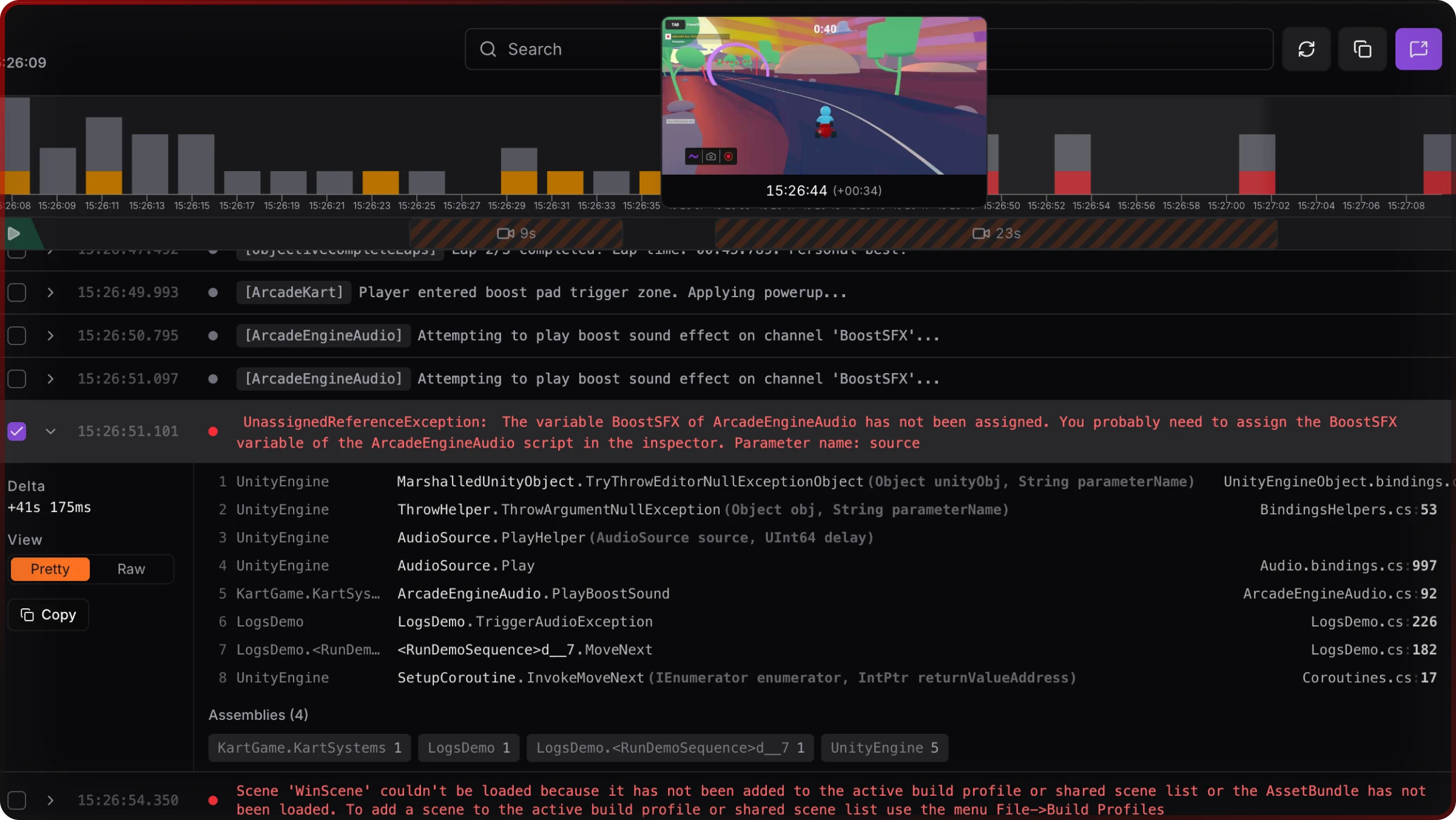
Log lines and frames together
Expand a log line to read the full stack trace; keep the Video Timeline in view to relate code path and pixels in one screen. That pairing is what turns “we saw a bug” into a reproducible handoff.
The Replay Player
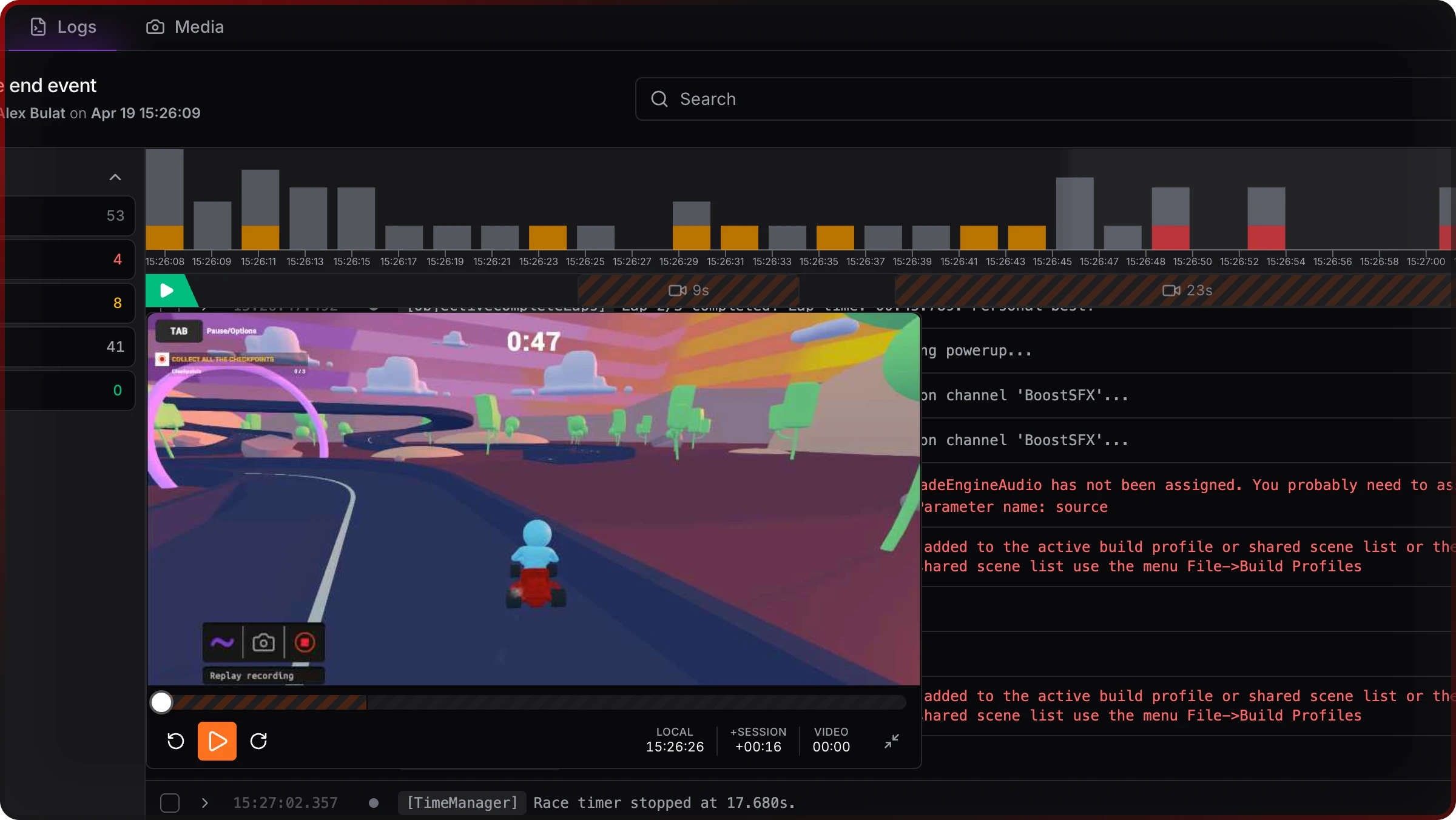
The Replay Player plays all recorded segments as one continuous virtual timeline with no visible gap between parts. It opens as a floating overlay when launched from the Video Timeline strip, or inline when you open a segment from the Media tab.
Multi-part playback
One snapshot can include multiple segments — for example, several Manual start/stop recordings, or multiple Shadow commits. There is no automatic split when a recording hits the session duration cap; when the cap is reached, recording stops and you need a new snapshot session to record more.
The player stitches every assembled segment into a single timeline. As one segment ends, the next loads so the transition feels continuous. All three time displays (below) track position across the combined duration.
Playback controls
| Action | Control |
|---|---|
| Play / Pause | Space or K, or the play button |
| Jump back 10 seconds | ← or the skip-back button |
| Jump forward 10 seconds | → or the skip-forward button |
| Seek to a specific moment | Drag the playhead on the timeline bar |
| Jump to start | Home |
| Jump to end | End |
| Close (floating player only) | Escape or the ✕ button |
Skip back and skip forward use virtual timeline seconds and cross segment boundaries — for example, pressing ← ten seconds into segment B can land in segment A without a hard cut.
Three time displays
The controls bar shows three synchronized readouts:
| Label | Format | Meaning |
|---|---|---|
LOCAL | HH:MM:SS | Wall-clock time at the current frame — useful next to log timestamps |
+SESSION | +MM:SS | Time since the snapshot session started |
VIDEO | MM:SS | Position inside the total replay footage across all segments |
Scaling modes
- Fit (default): Letterboxes the picture inside a 16:9 frame — best when you want predictable framing on wide monitors.
- Fill: Expands to natural height and can help portrait captures use the vertical space instead of small side bars.
Floating vs inline player
- From the Logs tab: the player often opens as a floating layer so you can still scroll logs and keep context.
- From the Media tab: the player is typically inline with the media grid (see below) so you can browse thumbnails and playback in one flow.
Auto-pause on scroll
When you scroll the log feed while video is playing, playback pauses automatically so you do not lose your place in the text. Press play again when you are ready.
Media tab — Combined Replay and fragments
The Media tab lists everything captured in the session: screenshots, individual video segments, and Combined Replay when the session includes multiple parts. Items are sorted by capture time.
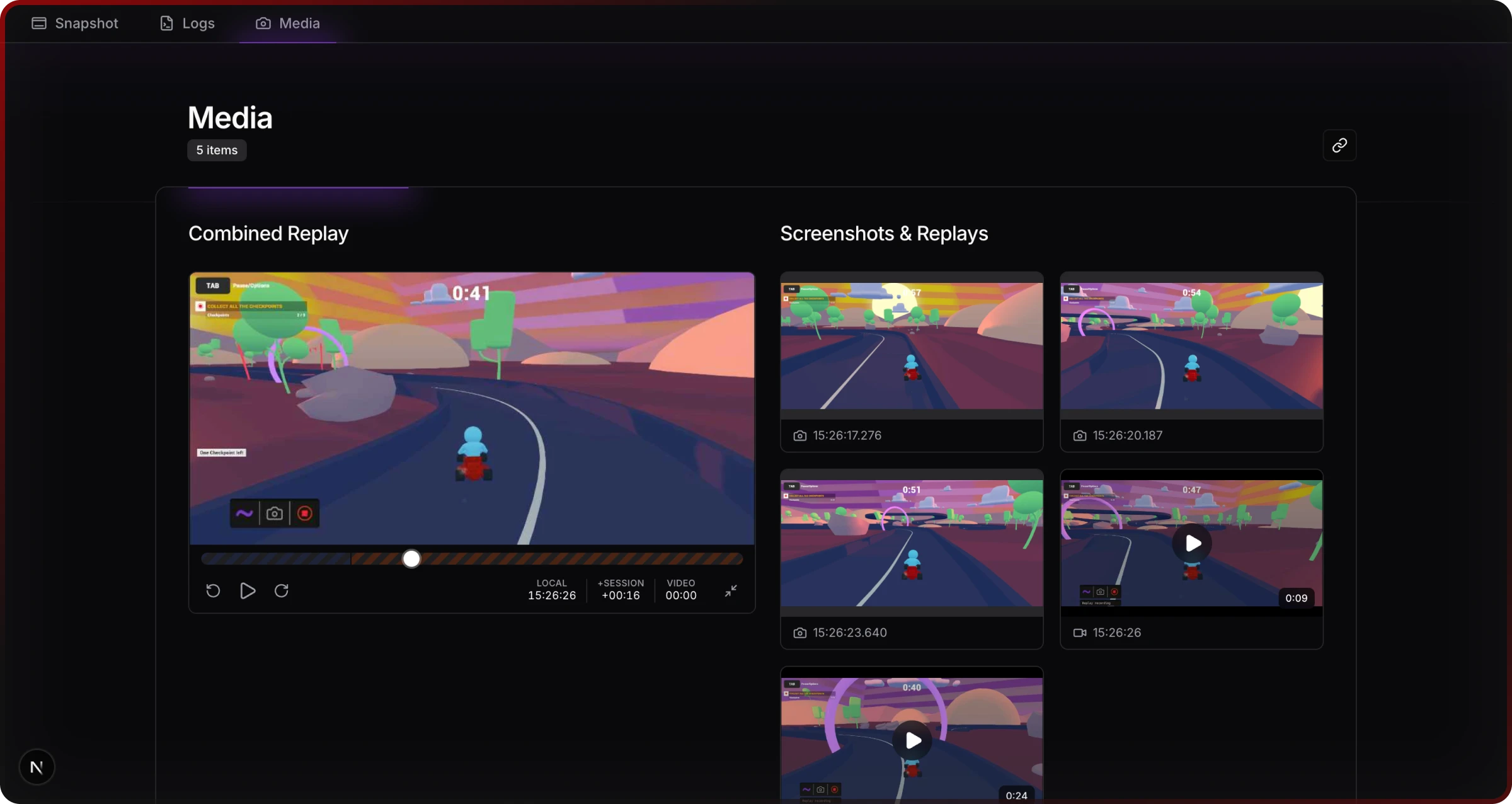
Video cards show a thumbnail (first frame), a play overlay, duration, and capture time. Only assembled segments appear as playable cards; segments still processing or failed are omitted from the grid.
Desktop: With video present, the layout often uses a sticky player column beside the scrolling grid. Mobile: The player stacks above the grid and scrolls with the page.
Frequently asked questions
Where do I find Session Replay in a snapshot?
Open the snapshot, go to the Logs tab for the Video Timeline strip, or the Media tab for thumbnails and Combined Replay.
What does “Assembling” mean?
The cloud is building an MP4 from uploaded frames. Wait a few seconds to about a minute and refresh.
Can I share a specific moment with my team?
Share the snapshot URL. Teammates with access see the same replay and logs. You can also select log lines in the Logs viewer to copy a tight excerpt.
Why is there no replay in my snapshot?
Nothing was recording during that session. Turn on Autostart in the in-game Settings View (after restart) or start recording from code — see Unity Session Replay.
Can I download the replay video?
Playback is in the browser via a signed URL. Download is not available in the current release.
Related
- Session Replay (overview) — Product page for teams evaluating capture and playback
- Unity Session Replay — Recording modes, in-game controls, and API
- Snapshots — Snapshot sessions in the web console
- Logs Viewer — Filtering, stack traces, and selection
- Screenshots Viewer — Still captures from the same session